Console Commands Reference
This page provides a comprehensive reference for all built-in CoordOps console commands.
Command Syntax
All commands follow this general syntax:
<command> [arguments] [--options]
To get help for any command:
<command> -h
Session Management Commands
new - Create New Session
Creates a new penetration testing session with specified target and configuration.
Syntax:
new --name <session-name> --host <target> --pass <password>
Options:
- --name: Session identifier (required)
- --host: Target IP address, IP range (CIDR), or domain (required)
- --pass: Password for encrypting session database (required)
Behavior:
- All three parameters are required
- Session name and host can contain quotes, which are automatically stripped
- Creates a new session in SessionManager with encrypted database
- Session becomes the active current session
- Session ID is generated in format: <name>-<unique-id>
Supported Host Formats:
- Single IP: 192.168.1.50
- IP Range (CIDR): 10.0.0.0/24, 192.168.1.0/16
- Domain: example.com, target.local
- Hostname: webserver, database.internal
Examples:
# Single host
new --name "WebApp1" --host "192.168.1.50" --pass "SecurePass"

# IP range (subnet)
new --name "NetworkScan" --host "10.0.0.0/24" --pass "SecurePass"

# Domain
new --name "DomainTest" --host "example.com" --pass "SecurePass"

# With quotes (automatically stripped)
new --name "Corporate PenTest" --host "192.168.1.0/24" --pass "SecurePass"

# Larger network
new --name "Enterprise" --host "172.16.0.0/12" --pass "SecurePass"
Output:
Creating session: WebApp1, Host: 192.168.1.50
Session created.
Return Value:
- Returns the created session ID in format: <name>-<id>
- Session becomes active and is accessible via SessionManager.CurrentSession
load - Load Existing Session
Loads a previously saved session from disk.
Syntax:
load --dir <session-directory> [--pass <password>]
Options:
- --dir: Path to session directory containing session.rtfm2 file (required)
- --pass: Password for decrypting session database (optional in interactive mode)
Behavior:
- The command automatically appends /session.rtfm2 to the directory path
- If --pass is not provided in interactive mode, you will be prompted to enter the password securely
- In Node-RED or automated mode, --pass must be provided as a parameter
- The directory path can be absolute or relative
- Quotes in the path are automatically stripped
Examples:
# Interactive mode - will prompt for password
load --dir "./PenTest2024"

# With password specified (Node-RED/automation)
load --dir "./PenTest2024" --pass "SecurePass"

# Windows path
load --dir "C:\Sessions\WebApp1" --pass "SecurePass"

# Relative path
load --dir ../sessions/project1 --pass "SecurePass"
File Structure: The session directory should contain:
PenTest2024/
├── session.rtfm2    # Main session file (automatically loaded)
└── ...              # Other session data
save - Save Current Session
Saves the current session to disk. Only available in interactive mode.
Syntax:
save <session-directory> [--pass <password>]
Options:
- sessionFilePath: Path where session will be saved (positional argument, required)
- --pass: Password for encrypting session database (optional)
Behavior:
- Interactive mode only (InteractiveOnly = true)
- If --pass is not provided, you will be prompted to enter the password securely
- Path can be absolute or relative
- Quotes in the path are automatically stripped
- Must have an active session loaded to save
- Session database is encrypted with the provided password
Important Notes:
- Ensure the database is not locked before saving
- The save operation uses SessionManager.LoadSession() internally
- Directory will be created if it doesn't exist
- Existing session files at the path may be overwritten
Examples:
# Save with password prompt
save ./MySession

# Save with password specified
save ./MySession --pass "SecurePass"

# Save to absolute path
save "C:\Sessions\Backup" --pass "NewPassword"

# Save to parent directory
save ../backup/session1 --pass "SecurePass"
Example Output:
Saving session from: ./MySession
Session saved.
Error Handling:
# No session loaded
Error saving session, make sure the DB is not locked.

# Database locked
Error saving session, make sure the DB is not locked.

# Other errors
Error: [specific error message]
Note: This command is only available in interactive mode.
session - Manage Session Tokens & Settings
The session command manages the session token registry (the short tokens issued by new and load for reuse with --session) and the settings of the current session.
# Token registry
session list                     # show all registered session tokens
session remove <token>           # remove one token (alias: deregister)
session clear                    # remove ALL tokens

# Current session settings
session settings                 # show current session settings
session settings --host-range "10.0.0.0/24"
session settings --description "External assessment"
session settings --wsl-command "wsl -e"      # set a WSL/proxy command prefix
session settings --shell-type bash            # set the preferred shell type
Other setting options include --session-id, --db-wordlist, --http-wordlist, --user-wordlist, --platform-default, --clear-wsl-command, --platform-default-shell, and --clear-shell-type. Run session with no argument to list registered tokens.
sync - Synchronize with Server
The sync command synchronizes the loaded session with the connected CoordOps server. By default it pushes local data to the server; use --pull to fetch the latest data from the server.
# Push local session data to the server (default)
sync

# Pull the latest data down from the server
sync --pull
Requires a server-backed session (see load --server).
Information Commands
help - Display Help Information
Shows available commands and usage information.
Syntax:
help [--showbanner]
Options:
- --showbanner: Display the main menu banner
Examples:
help                # List all commands
help --showbanner   # Show banner and commands
help update         # Check the connected server for a newer console version and install it
help updateis a commercial feature: when the console is connected to a CoordOps server, it checks for a newer console build, downloads and verifies it (SHA-256), and stages the update to apply when you exit and re-runrtfm.
list - List Available Features
Display information about commands, sessions, plugins, templates, connections, and Lua scripts.
Syntax:
list [options]
Options:
- --commands: List all built-in commands grouped by category (Enumeration, Exploitation, Post-Exploitation, Reconnaissance, Dynamic)
- --session: Print current session settings and statistics
- --plugins: Print loaded console plugins and their commands
- --templates: Print loaded template attacks
- --connections: Print active WebSocket server connections
- --lua: List loaded Lua scripts and custom commands
Detailed Option Behavior:
list --commands
Shows all available framework commands organized by category with title and command preview:
Enumeration:
  nmap_scan          nmap -sV -sC {target}
  dir_brute          dirb http://{target}
  ...
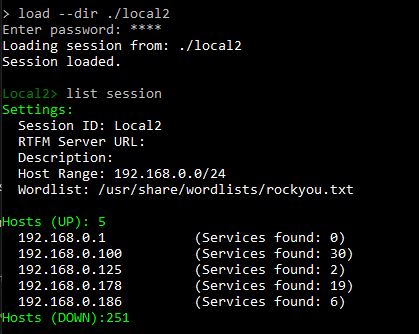
list --session
Displays current session information including:
- Session ID
- CoordOps Server URL
- Description
- Host range
- Wordlist path
- Hosts UP (with service counts)
- Hosts DOWN
Example output:
Settings:
  Session ID: pentest-abc123
  CoordOps Server URL: http://localhost:5000
  Description: Corporate pentest
  Host Range: 192.168.1.0/24
  Wordlist: /usr/share/wordlists/rockyou.txt

Hosts (UP): 5
  192.168.1.10    (Services found: 3)
  192.168.1.50    (Services found: 7)
  ...
Hosts (DOWN): 249
list --plugins
Shows loaded console plugin assemblies and any commands registered by them:
PluginAssembly.dll
Loaded Plugin Commands:
  Command: example-command - Example command summary
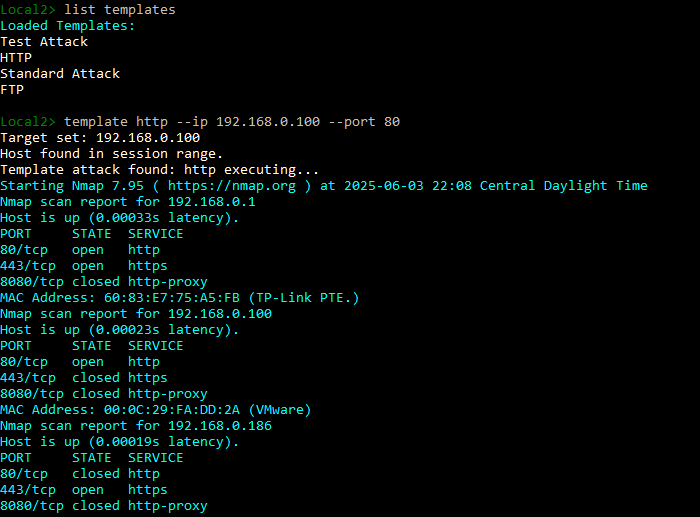
list --templates
Lists all available template attacks:
Loaded Templates:
  sqlmap
  nikto
  dirb_scan
  metasploit_exploit
list --connections
Displays active WebSocket connections with details:
Active Remote Connections:
User ID: alice    Session ID: pentest-123    Started: 2024-11-14 10:30:00Z    IP: 192.168.1.50
User ID: bob      Session ID: pentest-123    Started: 2024-11-14 10:32:15Z    IP: 192.168.1.51
list --lua
Shows loaded Lua scripts and their registered commands:
Loaded Lua Scripts:
notes.lua:
 - note
 - finding
 - show-notes
recon-helper.lua:
 - quick-scan --target
 - extract-info
Examples:
list --commands     # Show all available commands by category
list --session      # Display current session info and host statistics
list --plugins      # Show loaded console plugins
list --templates    # Show template attacks
list --connections  # Show active WebSocket connections
list --lua          # Show Lua scripts and custom commands
list                # Show help for list command (if no options provided)
hostinfo - Host Information
Retrieve detailed information about a specific host from the current session, including all discovered services.
Syntax:
hostinfo --host <ip-or-hostname>
Options:
- --host: IP address or hostname (required)
Requirements: - Must have an active session loaded - Host must exist in the current session's hosts list
Output: Displays all services discovered on the host, sorted by port number, including: - Port number - Protocol - Service name - Service details
Examples:
hostinfo --host 192.168.1.10
hostinfo --host webserver.local
Example Output:
Services: 3
22/tcp - ssh - OpenSSH 8.2p1
80/tcp - http - Apache httpd 2.4.41
443/tcp - https - Apache httpd 2.4.41 (SSL)
Note: This command is only available in interactive mode and requires a loaded session.
checklist - Manage Checklist Progress
The checklist command lets you review and update the engagement's pentest checklists from the console.
# List all checklist categories and items with their status
checklist --list

# Filter the listing by category
checklist --list --category "Web"

# Mark an item complete / not-applicable / reset, by item ID
checklist --check 42
checklist --no 42
checklist --uncheck 42

# Attach notes when updating an item
checklist --check 42 --notes "Verified on host 10.0.0.5"
lolbins - Search LOLBAS / GTFOBins
The lolbins command searches the local system for LOLBAS (Windows) or GTFOBins (Linux) binaries and shows how they can be abused. By default it lists only binaries actually found on the current host.
# Search by name, description, tag, function/category, or MITRE ID
lolbins --query certutil

# Filter by category/function
lolbins --category download

# Show catalog matches even if the binary isn't installed locally
lolbins --query nc --show-all

# Choose platform and output format
lolbins --platform windows --format json
Options: --query, --category, --show-all, --format table|json, and --platform auto|windows|linux.
Execution Commands
run - Execute Commands
Execute CoordOps framework commands or custom shell commands.
Syntax:
run --command <rtfm-command>
run --custom <shell-command>
Options:
- --command: CoordOps framework command to execute
- --custom: Custom shell command to execute from OS
Examples:
# Run CoordOps framework command
run --command "nmap_scan"

# Run custom shell command
run --custom "ls -la"
run --custom "nmap -sV 192.168.1.1"
RunScript - Execute Script File
Execute a custom automation script file (.rtfm2) containing multiple CoordOps commands to be run sequentially.
Syntax:
RunScript --filePath <path-to-script>
Options:
- --filePath: Path to automation script file (required)
Script File Format:
- Plain text file with .rtfm2 extension
- One command per line
- Each line is executed as a complete CoordOps command
- Empty lines and whitespace-only lines are skipped
- Commands are executed sequentially in order
- Each command is parsed and executed via the root command handler
How It Works:
1. Validates the file path is provided
2. Checks if the file exists
3. Reads all lines from the file using File.ReadAllLines()
4. For each non-empty line:
- Prints "Executing: [command]"
- Splits the line into arguments by whitespace
- Executes via _rootCommand.InvokeAsync()
5. Continues until all commands are executed
Script Execution:
- Commands run sequentially (not parallel)
- Each command waits for the previous to complete
- Asynchronous execution using async/await
- Command failures don't stop script execution
- All output is displayed in real-time
Supported Commands:
Any CoordOps console command can be used in scripts:
- Session commands: new, load, save
- Information commands: list, hostinfo
- Execution commands: run, shell, template
- Integration commands: server, plugins, file
- Lua commands (if registered)
Example Script File:
TestAutomation.rtfm2:
new --name "AutoTest" --host "192.168.1.0/24" --pass "SecurePass"
list --session
run --custom "nmap -sV 192.168.1.1"
template nikto --ip 192.168.1.1 --port 80
hostinfo --host 192.168.1.1
save ./AutoTest_Results --pass "SecurePass"
recon.rtfm2:
run --custom "nmap -sn 192.168.1.0/24"
run --custom "nmap -sV -sC 192.168.1.1"
run --custom "nikto -h 192.168.1.1"
run --custom "dirb http://192.168.1.1"
workflow.rtfm2:
list --plugins
plugins load --dir ./CustomConsoleCommands
list --lua
server --start --port 5001
list --connections
Examples:
Basic Usage:
# Execute automation script
RunScript --filePath ./automation.rtfm2

# Execute from absolute path
RunScript --filePath "C:\Scripts\recon.rtfm2"

# Execute test automation
RunScript --filePath ./TestAutomation.rtfm2
Workflow Example:
>> RunScript --filePath ./TestAutomation.rtfm2
Loading automation file: ./TestAutomation.rtfm2
Executing: new --name "AutoTest" --host "192.168.1.0/24" --pass "SecurePass"
Creating session: AutoTest, Host: 192.168.1.0/24
Session created.
Executing: list --session
Settings:
  Session ID: AutoTest-abc123
  ...
Executing: run --custom "nmap -sV 192.168.1.1"
[nmap output...]
Executing: template nikto --ip 192.168.1.1 --port 80
Target set: 192.168.1.1
[nikto output...]
Executing: hostinfo --host 192.168.1.1
Services: 5
...
Executing: save ./AutoTest_Results --pass "SecurePass"
Session saved.
Error Handling:
No File Path Provided:
Need to specify automation file.
File Not Found:
Could not find file: ./nonexistent.rtfm2
File Read Error:
[Exception message from file system]
Creating a Script File:
Windows:
# Create script file
@"
new --name "WebTest" --host "10.0.0.1" --pass "pass123"
list --session
run --custom "nmap -sV 10.0.0.1"
save ./WebTest --pass "pass123"
"@ | Out-File -FilePath automation.rtfm2 -Encoding ASCII
Linux/macOS:
# Create script file
cat > automation.rtfm2 << 'EOF'
new --name "WebTest" --host "10.0.0.1" --pass "pass123"
list --session
run --custom "nmap -sV 10.0.0.1"
save ./WebTest --pass "pass123"
EOF
Best Practices:
- Use Comments (Workaround):
- Script format doesn't support comments
- Use empty lines for readability
-
Keep commands on separate lines
-
Error Handling:
- Scripts continue even if a command fails
- Monitor output for errors
-
Test scripts with small datasets first
-
Password Security:
- Avoid hardcoding passwords in script files
- Consider using environment variables (not directly supported)
-
Secure script files with appropriate permissions
-
Path Handling:
- Use absolute paths for reliability
- Be cautious with relative paths in scripts
-
Ensure file paths exist before running
-
Command Ordering:
- Create/load session before commands that require it
- Save session at the end of the script
- List available resources before using them
Use Cases:
- Automated Reconnaissance: Sequential scanning and enumeration
- Batch Processing: Run same commands against multiple targets
- Testing: Automated testing of CoordOps functionality
- Workflows: Standardized penetration testing procedures
- CI/CD Integration: Automated security testing pipelines
- Training: Reproducible demonstrations and exercises
Limitations:
- No conditional logic (if/else)
- No loops or variables
- No inline comments
- Commands execute sequentially (no parallelization)
- No script-level error handling or try/catch
- For advanced automation, use Lua scripting or Node-RED
Advanced Automation:
For complex workflows with logic, consider: - Lua Scripting: Full programming capabilities with CoordOps API - Node-RED: Visual workflow automation with conditions and loops - External Scripts: Call RunScript from PowerShell/Bash scripts for variables and logic
shell - OS Shell Access
Enter an interactive operating system shell or execute single shell commands with persistent working directory state.
Syntax:
shell [--shell <shell-type>] [--cmd <command>] [--session-id <id>]
Options:
- --shell: Shell type - cmd, powershell (or pwsh), bash, sh (optional)
- --cmd: Execute single shell command (for remote/WebSocket mode) (optional)
- --session-id: Session identifier for maintaining shell state across calls (optional)
Operating Modes:
1. Interactive Mode (no options)
- Enters a full interactive shell loop
- Working directory persists across commands
- Colored prompt shows current directory
- Special handling for cd command
- Type exit, quit, or back to return to CoordOps
2. Single Command Mode (--cmd provided)
- Executes a single command and returns
- Used for remote/WebSocket command execution
- Working directory state is maintained via --session-id
- Supports cd command to change persistent directory
3. Remote Shell Initialization (--session-id without --cmd)
- Initializes remote shell state
- Returns startup message with current directory
- Used by WebSocket clients to start shell session
Session State Management:
- Uses ShellStateManager to track working directory per session ID
- Session ID priority: provided --session-id > current session > new GUID
- cd commands update the session's working directory
- State persists across multiple shell command executions
- State is removed when exit is called
Supported Shell Types:
| Shell Type | Command | Platform | Notes |
|---|---|---|---|
cmd |
cmd.exe /c |
Windows | Windows Command Prompt |
powershell / pwsh |
powershell.exe -Command |
Windows | Windows PowerShell |
bash |
/bin/bash -c |
Linux/macOS | Bourne Again Shell |
sh |
/bin/sh -c |
Linux/macOS | POSIX Shell |
Auto-Detection:
- Windows: Defaults to cmd.exe
- Linux/macOS: Defaults to /bin/bash
- Fallback: sh
Special Commands:
cd Command:
- Handled specially to maintain working directory state
- Supports absolute and relative paths
- Supports special paths: ~ (home), %USERPROFILE% (Windows)
- cd alone shows current directory
- Quotes are automatically stripped from paths
- Directory changes persist across command executions
exit / quit / back:
- Exits interactive shell mode
- Returns to CoordOps console
- Removes shell state from ShellStateManager
Command Execution: - Commands run in the persistent working directory - 5-minute timeout per command - Both stdout and stderr are captured and displayed - Commands with quotes are properly escaped - Asynchronous output streaming for real-time display
Examples:
Interactive Shell:
# Enter interactive shell (auto-detect)
>> shell
Entering CMD shell mode. Type 'exit' to return to CoordOps.
Current directory: C:\Users\username

[SHELL] C:\Users\username> cd Documents
[SHELL] C:\Users\username\Documents> dir
[SHELL] C:\Users\username\Documents> cd ..
[SHELL] C:\Users\username> exit

Exited shell mode.
Specific Shell Type:
# Use PowerShell
>> shell --shell powershell
Entering PowerShell shell mode. Type 'exit' to return to CoordOps.
Current directory: C:\Users\username

[SHELL] C:\Users\username> Get-ChildItem
[SHELL] C:\Users\username> exit

# Use Bash (Linux/macOS)
>> shell --shell bash
Entering Bash shell mode. Type 'exit' to return to CoordOps.
Current directory: /home/username

[SHELL] /home/username> ls -la
[SHELL] /home/username> cd /var/log
[SHELL] /var/log> pwd
/var/log
[SHELL] /var/log> exit
Remote/WebSocket Single Command:
# Execute single command with session tracking
shell --cmd "ls -la" --session-id "pentest-123"

# Change directory remotely
shell --cmd "cd /tmp" --session-id "pentest-123"

# Subsequent command uses new directory
shell --cmd "pwd" --session-id "pentest-123"
# Output: /tmp

# Exit remote shell
shell --cmd "exit" --session-id "pentest-123"
Special Path Examples:
# Home directory (Linux/macOS)
[SHELL] /var/log> cd ~
[SHELL] /home/username>

# User profile (Windows)
[SHELL] C:\Windows> cd %USERPROFILE%
[SHELL] C:\Users\username>

# Relative paths
[SHELL] C:\Users\username> cd Documents\Projects
[SHELL] C:\Users\username\Documents\Projects>

# Parent directory
[SHELL] C:\Users\username\Documents> cd ..
[SHELL] C:\Users\username>
Error Handling:
# Unknown shell type
>> shell --shell zsh
Unknown shell type: zsh
Available types: cmd, powershell, bash, sh

# Directory not found
[SHELL] /home/user> cd /nonexistent
Directory not found: /nonexistent

# Command timeout (5 minutes)
[SHELL] C:\> very-long-running-command
Command timed out (5 minutes). Killing process...
Colored Prompt:
- [SHELL] in yellow
- Working directory in cyan
- > prompt in white
Technical Details:
- Uses Process class with ProcessStartInfo
- Redirects stdout and stderr
- Asynchronous output reading with event handlers
- 5-minute (300,000 ms) timeout per command
- Working directory set via ProcessStartInfo.WorkingDirectory
- Quote escaping for command arguments
- Platform detection via RuntimeInformation
template - Execute Template Attacks
Execute predefined template-based attacks against targets in the current session.
Syntax:
template <attack-name> --ip <target-ip> [--hostname <hostname>] [--port <port>]
Arguments:
- attack: Template attack name (positional argument, required)
Options:
- --ip: Target IP address (required, unless --hostname is provided)
- --hostname: Target hostname (required, unless --ip is provided)
- --port: Target port (optional, defaults to 0 if not specified)
Requirements:
- Must have an active session loaded (SessionManager.CurrentSession)
- Target host must exist in the current session's host list
- Template attack must be loaded in TemplateManager
How It Works:
1. Validates that a session is loaded
2. Determines target from --ip or --hostname (one is required)
3. Searches for the host in the current session's host list (by IP or hostname)
4. Locates the template attack by name in TemplateManager.Instance.Templates
5. Executes template.Run(host, port, OutputHandler)
6. Streams output in real-time to the console
Target Resolution:
- Priority: --ip is used if provided, otherwise --hostname
- Host lookup is case-insensitive for hostnames
- Host must match either the IP or hostname in the session
Port Handling:
- Optional parameter
- If provided, parsed as integer
- If parsing fails, defaults to 0
- Passed to the template's Run() method
Examples:
Basic Usage:
# Execute sqlmap template against IP with specific port
template sqlmap --ip 192.168.1.10 --port 80

# Execute nikto template with both IP and hostname
template nikto --ip 192.168.1.50 --hostname webapp.local

# Execute template using only hostname
template dirb --hostname webapp.local --port 8080

# Execute without port (defaults to 0)
template nmap_vuln --ip 10.0.0.5
Workflow Example:
# 1. Create or load session
new --name "WebTest" --host "192.168.1.0/24" --pass "SecurePass"

# 2. List available templates
list --templates
# Output:
# Loaded Templates:
#   sqlmap
#   nikto
#   dirb_scan
#   metasploit_exploit

# 3. Execute template attack
template nikto --ip 192.168.1.10 --port 80
# Output:
# Target set: 192.168.1.10
# Host found in session range.
# Template attack found: nikto executing...
# [Attack output streams here...]
Error Handling:
No Session Loaded:
Loaded session required.
No Target Specified:
IP or hostname is required.
Host Not in Session:
Unable to find host for attack: 192.168.1.10
Solution: Ensure the target is within the session's host range
Template Not Found:
Unable to find template attack: invalidtemplate
Solution: Use list --templates to see available templates
Example Output:
>> template nikto --ip 192.168.1.10 --port 80
Target set: 192.168.1.10
Host found in session range.
Template attack found: nikto executing...
- Nikto v2.1.6
- Target IP: 192.168.1.10
- Target Port: 80
- Testing...
[Real-time attack output...]
List Available Templates:
list --templates
Template Management:
- Templates are loaded from TemplateManager.Instance
- Template names are case-insensitive
- Each template implements custom attack logic
- Output is handled via DataReceivedEventArgs callback
parse - Import Tool Output
The parse command reads a tool's output file and imports the results (hosts, services, users, etc.) into the current session.
# Parse an Nmap XML file
parse --file scan.xml --type nmap

# Auto-detect the tool from the file
parse --file output.txt --type auto

# Single-host parsers need a --host to associate results with
parse --file whatweb.txt --type whatweb --host 10.0.0.5
Supported --type values include nmap, nuclei, nikto, kerbrute, netexec, ldap, gobuster, ffuf, dirb, subfinder, sublist3r, sslscan, certipy, the impacket-* scripts, rpcclient, smbclient, nfs, nslookup, whois, dig, whatweb, theharvester, searchsploit, and auto.
AI Commands
ai - Manage AI Provider Endpoints
The ai command configures the AI provider endpoints the console (and agents) use for analysis. Endpoints are tried in priority order.
# List configured endpoints
ai list

# Add an endpoint
ai add --vendor OpenAI --url https://api.openai.com/v1 --key sk-... --model gpt-4o --label "OpenAI"
ai add --vendor Ollama --url http://localhost:11434 --model llama3

# Edit, enable/disable, remove, or test an endpoint (by Id or Label)
ai edit --id "OpenAI" --model gpt-4o-mini
ai disable --id "OpenAI"
ai enable --id "OpenAI"
ai test --id "OpenAI"
ai remove --id "OpenAI"
Key options: --vendor (OpenAI, Ollama, LM_Studio, LlamaCpp), --url, --key, --model, --instruction-model, --label, --temperature, --max-tokens, --sort-order (lower runs first), and --disabled.
agent - Run AI Agents
The agent command drives the Agent AI Manager — browse the agent catalog, load agent plugins, and run agents against a task described in natural language.
# Browse the catalog and manage plugins
agent --list
agent --plugins
agent --reload-plugins
agent --load-plugin ./MyAgent.dll

# Run an agent from a prompt, with session inputs
agent --run --prompt "Enumerate the domain and find AS-REP roastable users" \
      --input domain=corp.local --input dc=10.0.0.10

# Route to a specific agent, or resume a paused run
agent --run --agent ad-enum --prompt "..."
agent --runs                 # list resumable runs
agent --resume <runId>
Other options: --task (limit to specific task IDs), --no-handoffs, --non-interactive (fail instead of prompting for missing input), and --plugin-dir. Configure providers first with the ai command.
Networking Commands
proxy - SOCKS5 Proxy Server
The proxy command runs a SOCKS5 proxy on this machine so you can route other tools (e.g., via proxychains) through the console's host.
proxy --start     # start the SOCKS5 proxy server
proxy --status    # show proxy status
proxy --stop      # stop the proxy server
tunnel - SSH Tunnels
The tunnel command manages SSH tunnels — local forwards, remote forwards, and dynamic SOCKS proxies — through a jump host.
# Local forward: reach a remote service through the jump host
tunnel --local 8080:10.0.0.5:80 --via user@jump.host

# Remote forward: expose a local port on the jump host
tunnel --remote 9000:localhost:3000 --via user@jump.host --key ~/.ssh/id_rsa

# Dynamic SOCKS proxy on a local port
tunnel --socks 1080 --via user@jump.host

# Manage tunnels
tunnel --list
tunnel --close <id-or-name>
Options: --local, --remote, --socks, --via ([user@]host[:port]), --key, --pass, --name, --list, and --close.
Integration Commands
desktop-lua - Run Desktop Lua Scripts Headlessly
Runs Desktop-compatible Lua automation scripts without launching Avalonia windows. This command is useful for CI, smoke tests, scripted Desktop window automation, and validating bundled Lua scripts.
Syntax:
desktop-lua run --file <script.lua> [options]
Options:
- --file: Path to the Desktop Lua script to execute (required)
- --new-session: Create a new local session before running the script
- --target: Target host, range, or domain for --new-session
- --load-session: Load an existing session file or session directory before running the script
- --password: Session database password
- --dry-run: Generate commands and callbacks without launching external tools
- --fail-fast: Return a non-zero exit code when a generated command fails
- --timeout: Maximum script runtime in seconds; defaults to 300
- --output: Output format, either text or json
Examples:
desktop-lua run --file "Assets\Scripts\LUA\11_window_metadata_showcase.lua" --dry-run

desktop-lua run --file "Assets\Scripts\LUA\automation_test_1.lua" --new-session Headless_Nmap_Test --target 192.168.0.100 --password test --dry-run --timeout 30

desktop-lua run --file "Assets\Scripts\LUA\11_window_metadata_showcase.lua" --load-session "C:\CoordOps\Sessions\Assessment1" --password "session-password" --output json
For the full API and automation model, see Headless Desktop Lua Automation.
server - WebSocket Server Management
Start or stop the WebSocket server for remote client connections.
Syntax:
server --start [--port <port>]
server --stop
Options:
- --start: Start WebSocket server
- --stop: Stop WebSocket server
- --port: Port number (default: 5001)
Examples:
server --start              # Start on default port 5001
server --start --port 8080  # Start on custom port
server --stop               # Stop server
Check Active Connections:
list --connections
Note: This command is only available in interactive mode.
plugins - Console Plugin Management
Load console command plugins from a specified directory.
Syntax:
plugins load --dir <plugin-directory>
Options:
- load: Load commands from the target directory
- --dir: Directory path containing plugin DLL files
Behavior:
- Scans the directory for .dll files
- Loads each assembly
- Finds non-abstract classes that derive from OptionsBase
- Instantiates each command class
- Registers each command with the active console root command
- Logs load failures without stopping other assemblies from loading
Examples:
plugins load --dir ./CustomConsoleCommands
plugins load --dir "C:\CoordOps\CustomConsoleCommands"
list --plugins
For details on building command plugins, see Plugin Development.
file - File Transfer
Transfer files from the server's LootDir to connected clients.
Syntax:
file --copy <filename>
Options:
- --copy: Copy file from server's LootDir to client
Example:
file --copy loot.txt
file --copy "passwords_found.txt"
evidence - Create Evidence Bags
The evidence command creates an evidence bag on the connected CoordOps server and attaches notes, commands, and files to it in one step.
# Create a bag with a note and attach specific local commands + a file
evidence --title "SQLi on login" \
         --note "Confirmed boolean-based blind SQLi" \
         --command-id 12 --command-id 15 \
         --file ./sqlmap-output.txt

# Attach commands by matching a substring instead of IDs
evidence --title "SMB findings" --command-filter smbclient
Options: --title, --description, --note, --command-id (repeatable), --command-filter (repeatable), and --file (repeatable). Requires a server-backed session.
pool - Worker Pool Agent
The pool command registers this console as a worker in the connected server's worker pool, so the server can dispatch tasks to it.
# Register this console as a worker (starts its WebSocket server)
pool --register --display-name "kali-01" --capability nmap,netexec

# Show worker/pool state, update status, or disconnect
pool --info
pool --status ready
pool --disconnect
Options: --register, --status (ready, busy, unavailable, errored), --info, --disconnect, --display-name, --endpoint-url, --capability (repeat or comma-separate), and --no-start-server. Requires a loaded remote session.
Command Availability
Some commands are restricted to specific modes:
| Command | Argument Mode | Interactive Mode | Node-RED Mode |
|---|---|---|---|
| help | ✓ | ✓ | ✓ |
| list | ✓ | ✓ | ✓ |
| new | ✓ | ✓ | ✓ |
| load | ✓ | ✓ | ✓ |
| save | ✗ | ✓ | ✓ |
| run | ✓ | ✓ | ✓ |
| RunScript | ✓ | ✓ | ✓ |
| shell | ✓ | ✓ | ✓ |
| template | ✓ | ✓ | ✓ |
| desktop-lua | ✓ | ✓ | ✓ |
| server | ✗ | ✓ | ✓ |
| plugins | ✓ | ✓ | ✓ |
| file | ✓ | ✓ | ✓ |
| hostinfo | ✗ | ✓ | ✓ |
| session | ✓ | ✓ | ✓ |
| sync | ✓ | ✓ | ✓ |
| checklist | ✓ | ✓ | ✓ |
| lolbins | ✓ | ✓ | ✓ |
| parse | ✓ | ✓ | ✓ |
| ai | ✓ | ✓ | ✓ |
| agent | ✓ | ✓ | ✓ |
| proxy | ✓ | ✓ | ✓ |
| tunnel | ✓ | ✓ | ✓ |
| evidence | ✓ | ✓ | ✓ |
| pool | ✓ | ✓ | ✓ |
Common Workflows
Basic Penetration Testing Workflow
# 1. Create session
new --name "Target1" --host "192.168.1.100" --pass "SecurePass"

# 2. Run reconnaissance
run --custom "nmap -sV -sC 192.168.1.100"

# 3. Execute template attack
template nikto --ip 192.168.1.100

# 4. Save session
save ./Target1_Session --pass "SecurePass"
Loading and Continuing Previous Work
# Load existing session
load --dir ./Target1_Session --pass "SecurePass"

# Check session info
list --session

# Continue testing
shell
Using Lua Custom Commands
# List available Lua commands
list --lua

# Execute Lua-registered command
quick-scan --target 192.168.1.0/24
Next Steps
- Learn about Lua Scripting to create custom commands
- Run Desktop Lua scripts headlessly for CI and Desktop automation
- Explore Node-RED Integration for visual automation
- Return to Console Overview