Administration
The Admin Dashboard provides tools for managing users, configuring platform services, and maintaining operational health.
Admin Dashboard Overview
Use the admin area as the control center for account management, system configuration, and platform maintenance.
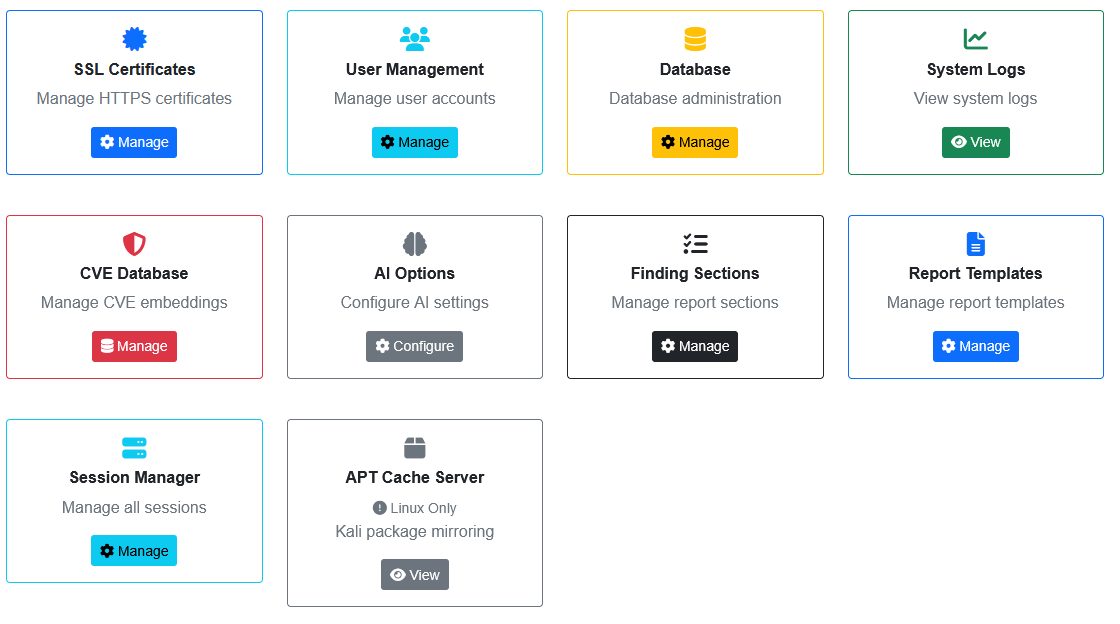
User & Permission Management
Create users, assign roles, and control who can access specific sessions and data.
- User Accounts: Create and manage user credentials
- Role-based Access: Admin vs. standard user capabilities
- Activity Visibility: Track user actions and changes
Session Access Control
Grant and revoke access to sessions to keep engagements scoped to the right team members.
- Assign users to sessions
- Adjust permissions as engagements change
- Remove access when a project closes
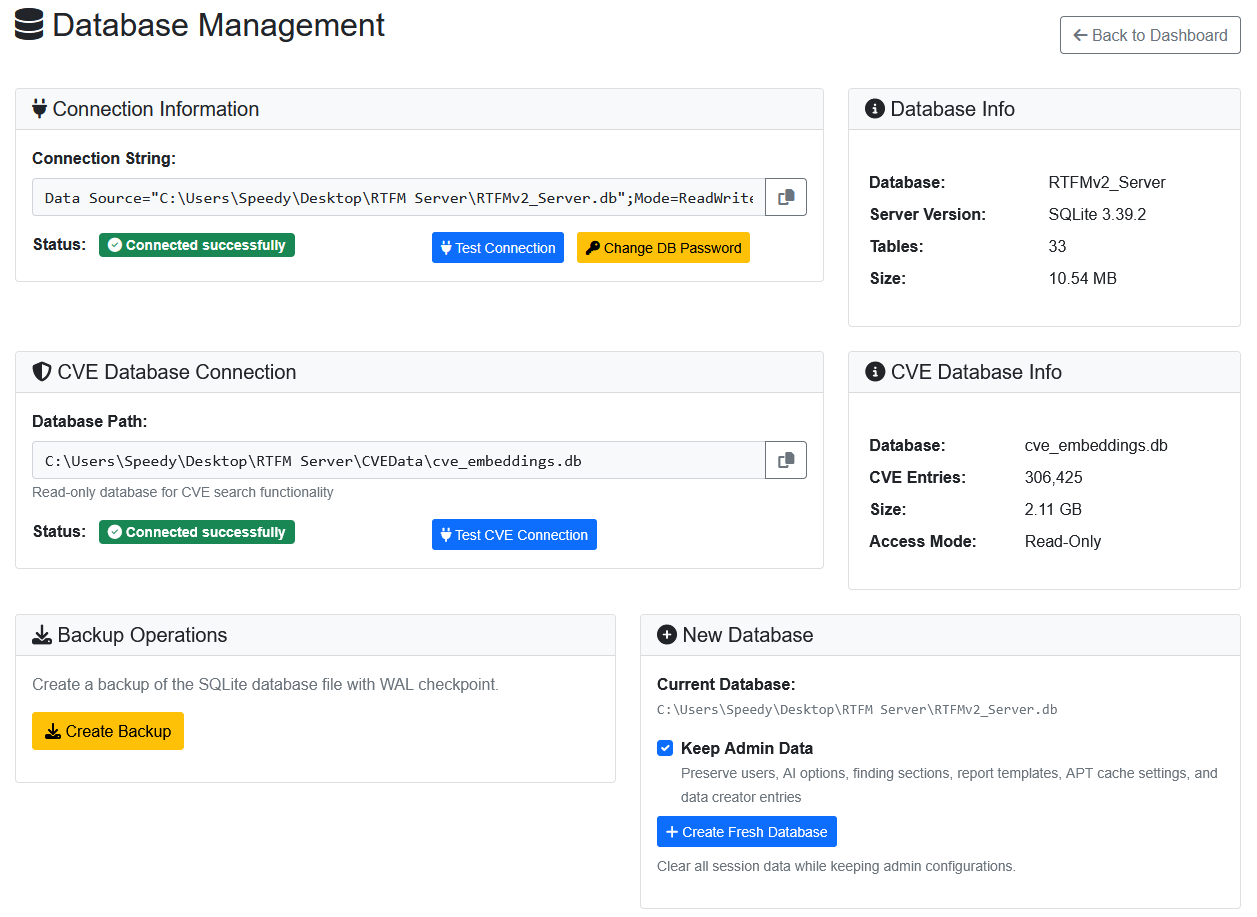
Database Management
Monitor database health and keep data safe with maintenance tasks.
- View database statistics
- Backup and restore operations
- Database maintenance tasks
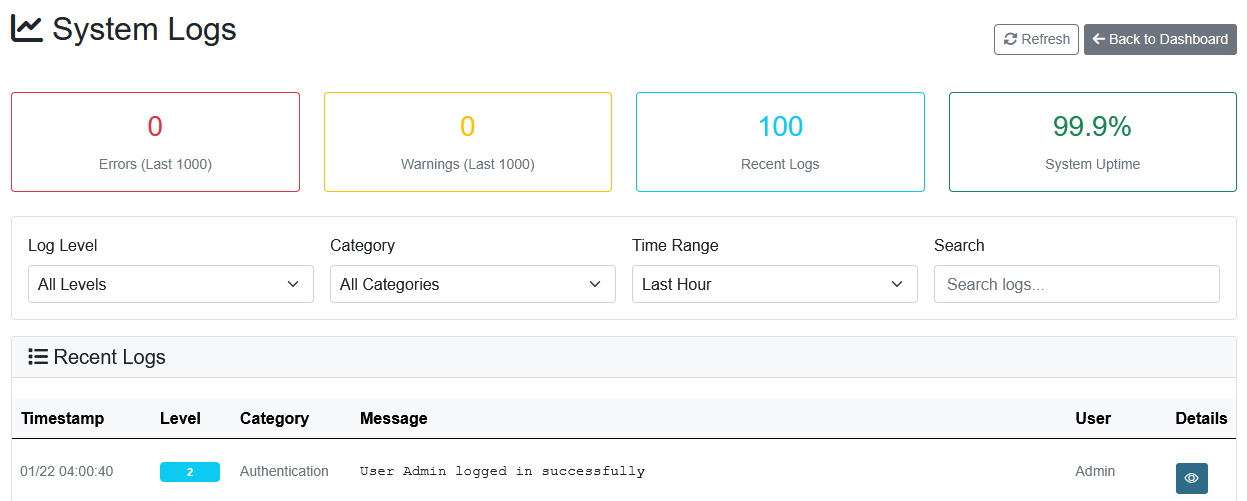
System Logs
Audit platform activity and troubleshoot issues using the logs interface.
- Request logging
- Authentication events
- Error tracking
- User activity monitoring
Certificate Management
Configure HTTPS certificates for secure communication and production deployments.
- Upload PFX/PEM certificates
- Configure certificate paths
- Test certificate validity
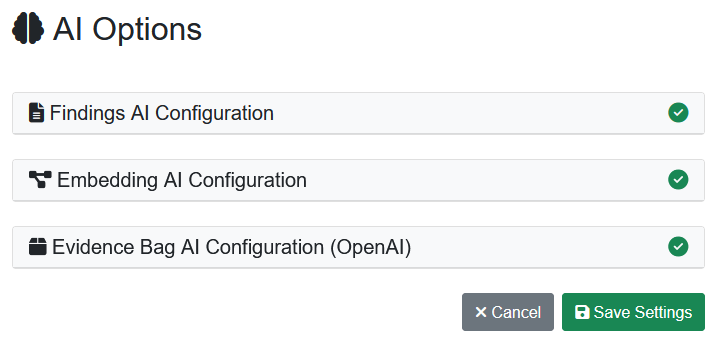
AI Configuration
Connect to AI services for automated analysis and report enhancements.
- Set API endpoint URL
- Configure API keys
- Test connection
- Select AI models
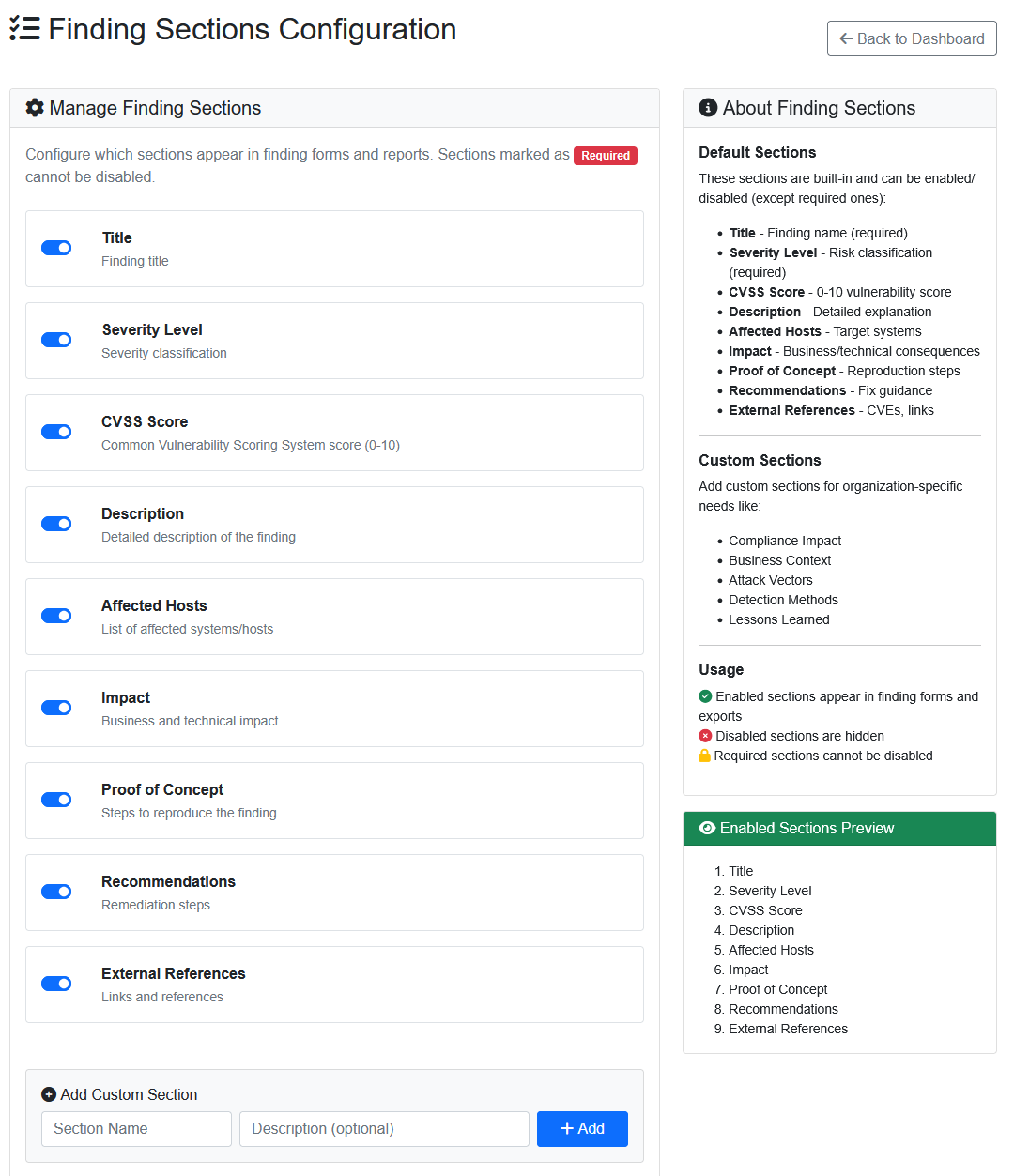
Finding Sections Configuration
Customize what sections appear in findings and reports to match your deliverable format.
- Executive Summary
- Technical Details
- Impact Assessment
- Recommendations
- Remediation Steps
- References
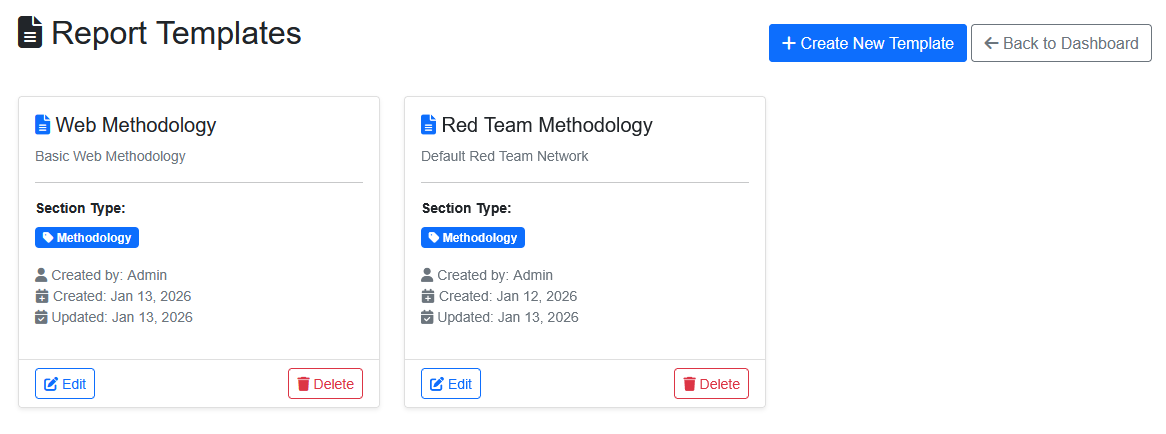
Report Templates
Manage the structure and branding of generated reports from the admin area: create and edit report templates, add custom report sections, configure report AI skills, and upload Word (.docx) templates. See Findings & Reporting → Report Templates for the full walkthrough.
CVE Database Management
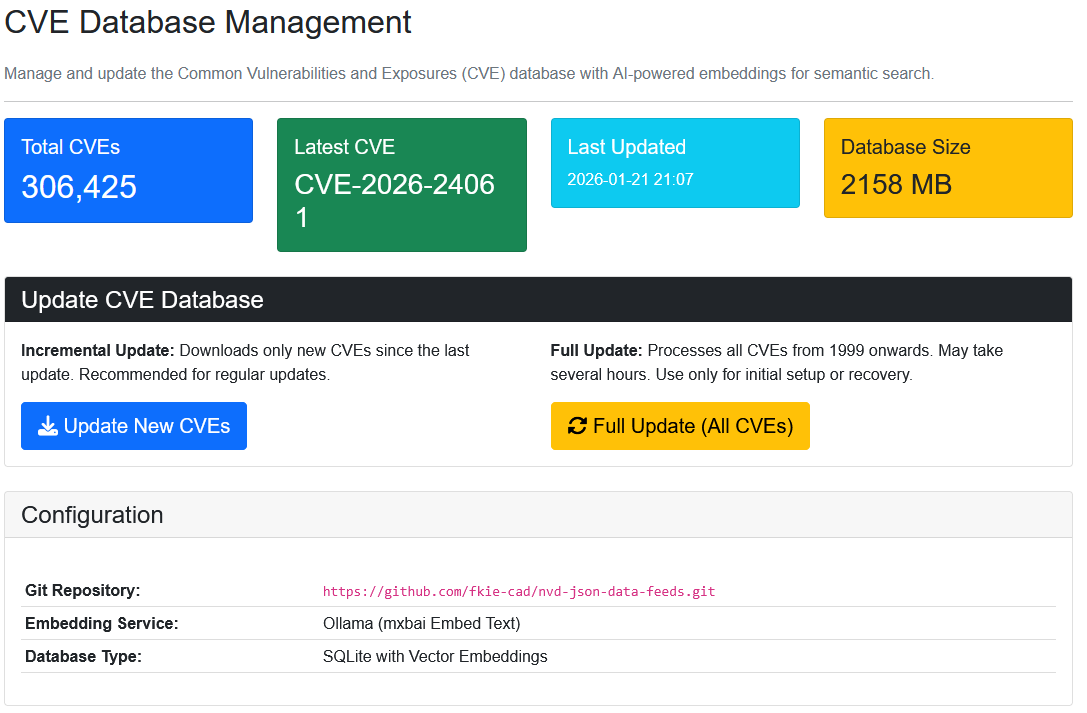
The CVE Database Management page maintains the local CVE database that powers CVE Search.
- View the total number of CVEs currently stored
- Import and update the CVE data set
- Track update progress while a refresh runs
Keeping this database current ensures CVE lookups return accurate, up-to-date results.
Task Scheduler
The Scheduler runs recurring background jobs (for example, data maintenance or CVE refreshes) on a schedule. It is organized into several pages:
- Dashboard — an at-a-glance summary of scheduler status and statistics
- Jobs — the list of configured jobs; Create Job and Edit Job to define a job, its schedule, and its action
- History — a log of past runs; open a Run Detail to inspect a single run's outcome and output
- Blackout Windows — time periods during which jobs are suppressed (e.g., business hours or maintenance windows)
- Settings — global scheduler configuration
Worker Pools
Worker Pools manage the distributed workers that execute queued tasks on behalf of the platform.
- Create and update pools, and enable or disable them
- Add or remove workers, and disconnect a worker
- Review the pool's recent tasks and events (paged)
Worker pools let heavier or long-running work be handed off to dedicated workers instead of blocking the web application.
DropBoxes
The DropBoxes page manages deployed DropBox field devices that check in with the server.
- See each DropBox's profile, hostname, and status
- Toggle silent running on or off for a device (queued and applied on next check-in)
DropBox Profiles
DropBox Profiles let you create, validate, and export persistent DropBox deployment profiles — the reusable configuration a DropBox device is provisioned with. Build a profile once, validate it, and export it for deployment.
Node-RED Automation
The Node-RED Management page installs, starts, stops, and monitors an embedded Node-RED instance — a flow-based tool for wiring together APIs, devices, and services into visual automations. Use it to build automations that react to or drive CoordOps data. (For the console's Node-RED integration, see Console → Node-RED Integration.)
Lua Scripting
The Lua Scripting page controls the limits for server-side Lua execution:
- Maximum script execution time (seconds)
- Maximum Lua source size (characters)
- Maximum output size (characters)
These guardrails keep server-side scripts safe and bounded.
Notifications
The Notifications page configures the platform's notification and alerting behavior so the right people are informed about important events.
APT Cache Server
The APT Cache Server Management page configures a local APT package mirror for Kali Linux — useful for provisioning tools in air-gapped environments. You can choose a smaller section-based mirror or a full mirror and trigger syncs.
This feature requires the server to be running on Linux (Kali) with root privileges.
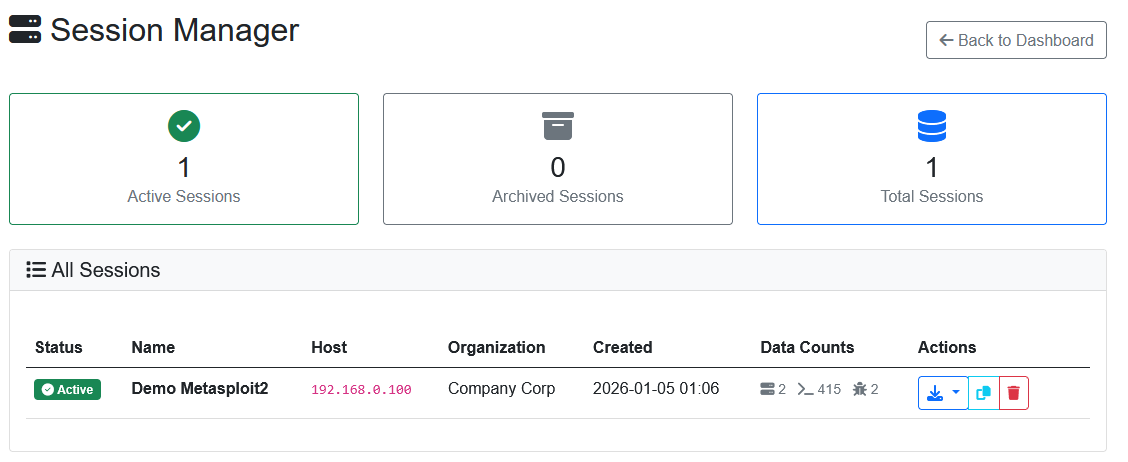
Session Manager
The Session Manager gives administrators oversight of all sessions on the server, including permanent deletion of a session. Deletion is a destructive, irreversible action, so the interface requires you to type the session name exactly to confirm.