Findings & Reporting
The findings and reporting workflow is where teams document vulnerabilities, collaborate on remediation details, and generate client-ready deliverables.
Finding Management
The findings module allows teams to document security vulnerabilities:
- Severity Levels: Critical, High, Medium, Low, Informational
- Affected Hosts: Track which systems are impacted
- Rich Content: Description, impact, recommendations, and remediation steps
- Export Options: Individual or bulk export to HTML/PDF
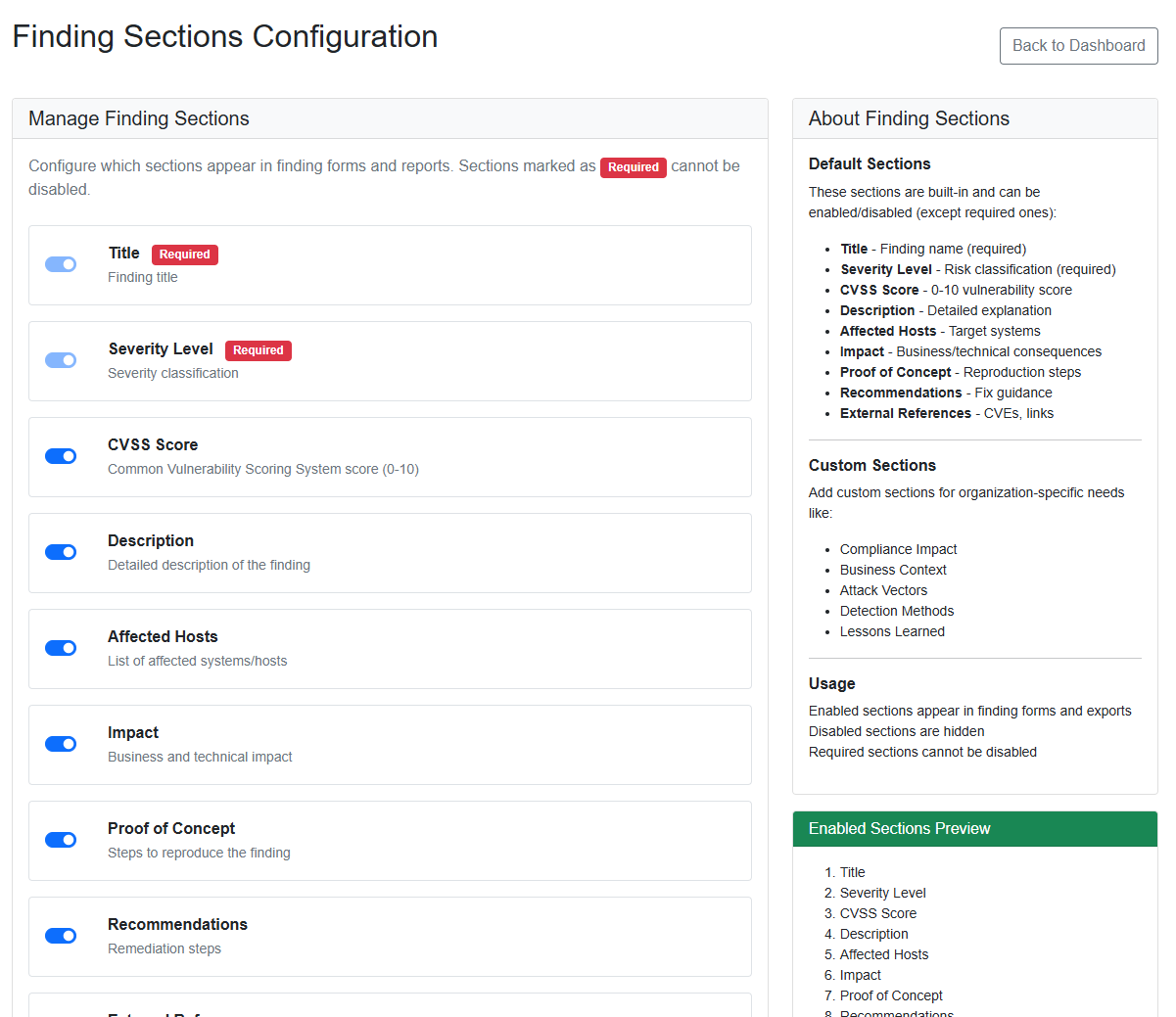
- Customizable Sections: Configure which sections appear in findings
Adding Findings
- Select a session from the Sessions list
- Click on Findings in the session details
- Click + New Finding
- Fill in finding details:
- Title and severity level
- Affected hosts
- Description and impact
- Recommendations and remediation
- Save the finding
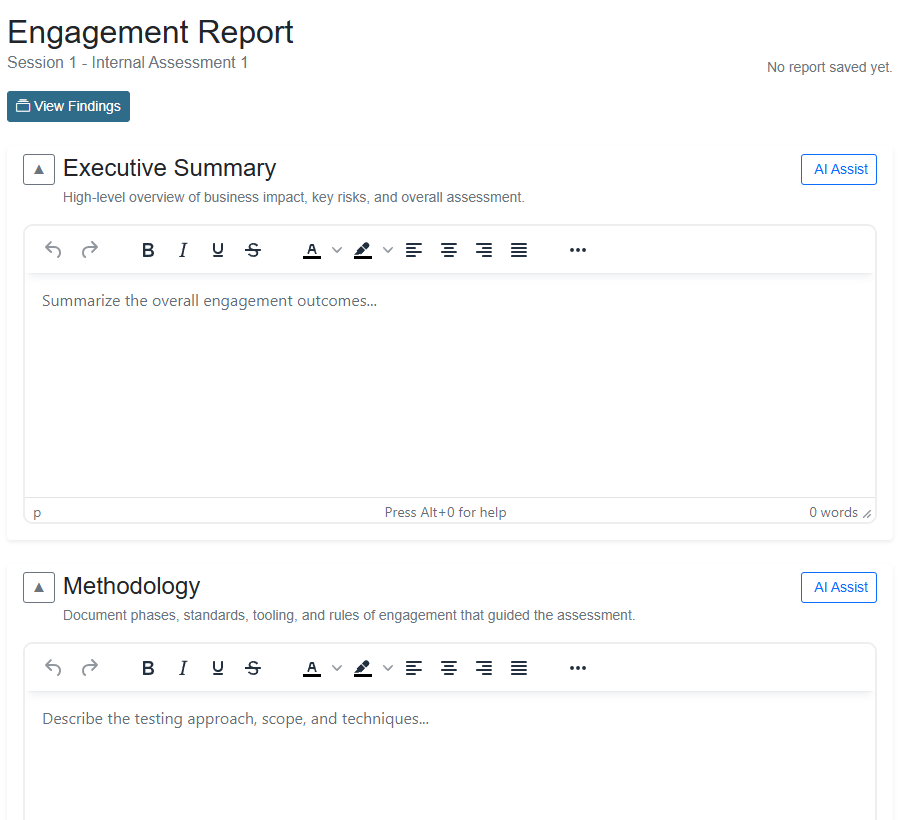
Reporting & Export
- PDF Report Generation: Professional penetration testing reports using QuestPDF
- HTML Export: Export findings and data in HTML format
- Customizable Templates: Configure finding sections and report structure
- Bulk Export: Export all findings from a session at once
Report Generation
Professional report creation for deliverables:
- PDF Generation: High-quality PDF reports using QuestPDF library
- HTML Export: Web-friendly export format
- Customizable Templates: Configure report sections and structure
- Finding Sections: Executive summary, technical details, recommendations, etc.
- Bulk Export: Export all findings from a session in one operation
Generating Reports
- Navigate to Findings for a session
- Click Export Findings dropdown
- Choose export format:
- HTML: Web-friendly format
- PDF: Professional report document
- Report will be generated and downloaded
Importing Existing Reports
You can bring findings in from an existing report file instead of typing them by hand. The Report Imports workflow parses an uploaded report and lets you review what will be created before anything is added to the session.
- Open a session and choose Import Report.
- Upload the report file (or select a file already uploaded to the session).
- On the Preview screen, review the findings and data the server extracted.
- Confirm to create the findings in the session.
Because you preview first, you stay in control of exactly which items are imported.
Report Templates
Report templates control the structure and content of your generated deliverables. Templates are managed from the Admin area.
- Report Templates — create, edit, and delete templates that define which sections a report contains and how it is laid out.
- Custom Report Sections — add your own sections (beyond the built-in ones) and remove sections you don't need.
- Report AI Skills — configure the AI prompts/skills used to help draft report content.
- Word Report Templates — upload
.docxtemplates for Word-format output, set a default, and download or remove them.
Configure your template once and reuse it across engagements so every deliverable matches your house format. See Administration for where these live, and Finding Sections Configuration for tuning the sections that appear inside individual findings.